

Prompts
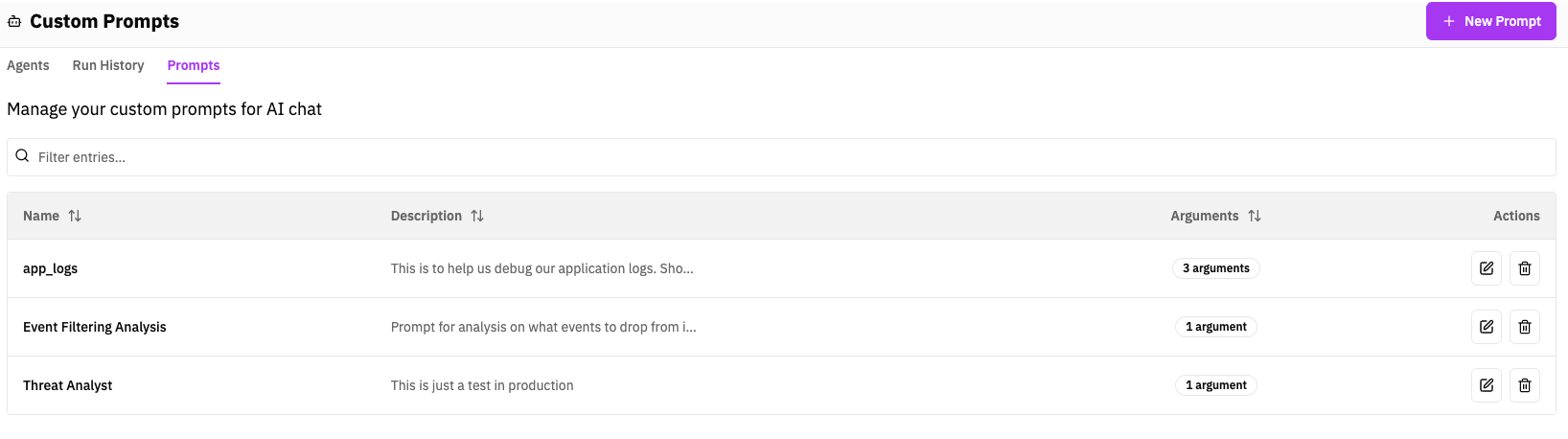
RunReveal provides a prompts API that follows the Model Context Protocol (MCP) specification for prompts. This allows you to create reusable prompt templates that can be dynamically customized with arguments.
Overview
Prompts enable you to define structured message templates that can be retrieved and customized with specific arguments. This is particularly useful for:
- Standardizing common analysis requests
- Creating reusable detection templates
- Providing consistent prompt structures across your organization
- Enabling dynamic content injection based on context
Template Syntax
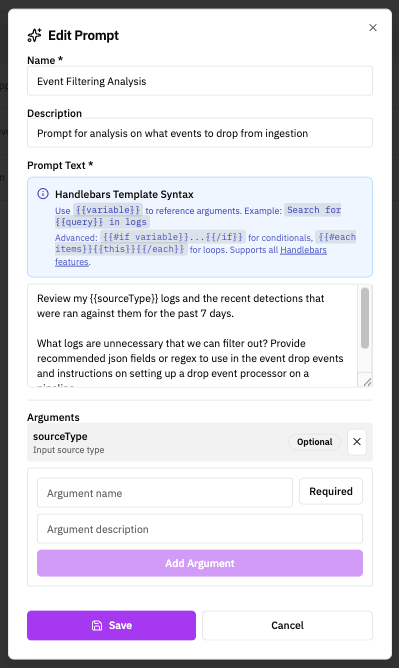
RunReveal uses Handlebars templating syntax for prompts. This provides powerful templating capabilities including variable substitution, conditionals, and loops.
Basic Variable Substitution
Arguments are referenced using double curly braces:
Examples:
Basic argument usage:
Multiple arguments:
Advanced Handlebars Features
Conditionals
Use {{#if}} blocks to conditionally include content:
Unless Blocks
Use {{#unless}} to show content when a condition is false:
For more advanced Handlebars features, see the Handlebars documentation.
Data Types
Prompt
A prompt definition includes:
name: Unique identifier for the prompttitle: Optional human-readable name for display purposesdescription: Optional human-readable descriptionarguments: Optional list of arguments for customization
Example Prompts
Security Analysis Prompt
This example demonstrates using Handlebars conditionals to handle optional parameters:
Built-in Prompts
RunReveal ships one built-in MCP prompt out of the box, alongside any custom prompts you create: write-detection. It guides an AI assistant through writing a new SQL or Sigma detection and accepts these arguments:
| Argument | Required | Description |
|---|---|---|
description | Yes | The security threat or behavior to detect |
detectionType | No | sql (scheduled) or sigma (real-time) |
source | No | Primary source type to target (e.g. aws_cloudtrail_logs) |
severity | No | Expected severity: low, medium, high, or critical |
It appears in prompts/list alongside your custom prompts and visible Agent Skills for any connected MCP client.
Implementation Considerations
- Argument Validation: Servers validate prompt arguments before processing
- Authentication: All API requests require a valid API token
Security
Implementations carefully validate all prompt inputs and outputs to prevent:
- Injection attacks
- Unauthorized access to resources
- Malicious content execution
Always validate and sanitize arguments before using them in prompt templates.
Usage Examples
Using Arguments in Prompt Text
This documentation follows the Model Context Protocol specification for prompts and provides a comprehensive guide for using RunReveal's prompts API.
Using Prompts in Remote MCP Connection
Claude AI
Follow the steps to set up your remote MCP server connection. Make sure that the Chat read and Chat write permissions are enabled.
Once you have your connection with RunReveal established, start a new chat and open the dropdown menu from the plus icon. If you have any prompts configured in your RunReveal workspace, you should see an option "Add from INTEGRATION_NAME" (RunReveal in the example below).
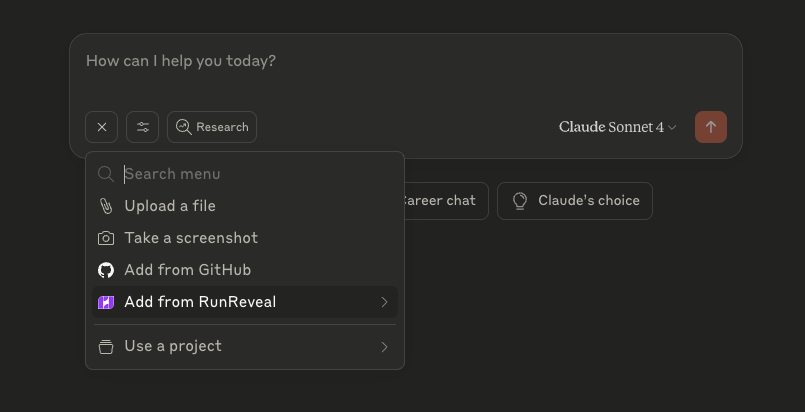
Selecting "Add from INTEGRATION_NAME" will either immediately add the prompt as a .txt file to the chat, or prompt you to add values for your configured arguments if the prompt has an arguments field.
Related Documentation
- Agent Skills - Argument-free instruction sets that also surface as zero-argument prompts in
prompts/list - Model Context Protocol - Connect Claude, Cursor, and other MCP clients
- Agents - Automate AI-powered agents to run on a schedule