

Agents
Agents are AI-powered automations that run on a schedule to analyze your security data and deliver findings before you ask. Define what you want to know—suspicious logins, detection summaries, compliance snapshots—set a cron schedule, and let the agent handle the rest. Each run queries your logs, interprets the results, and sends a report to your inbox.
No dashboards to refresh, no queries to remember, no windows to miss.
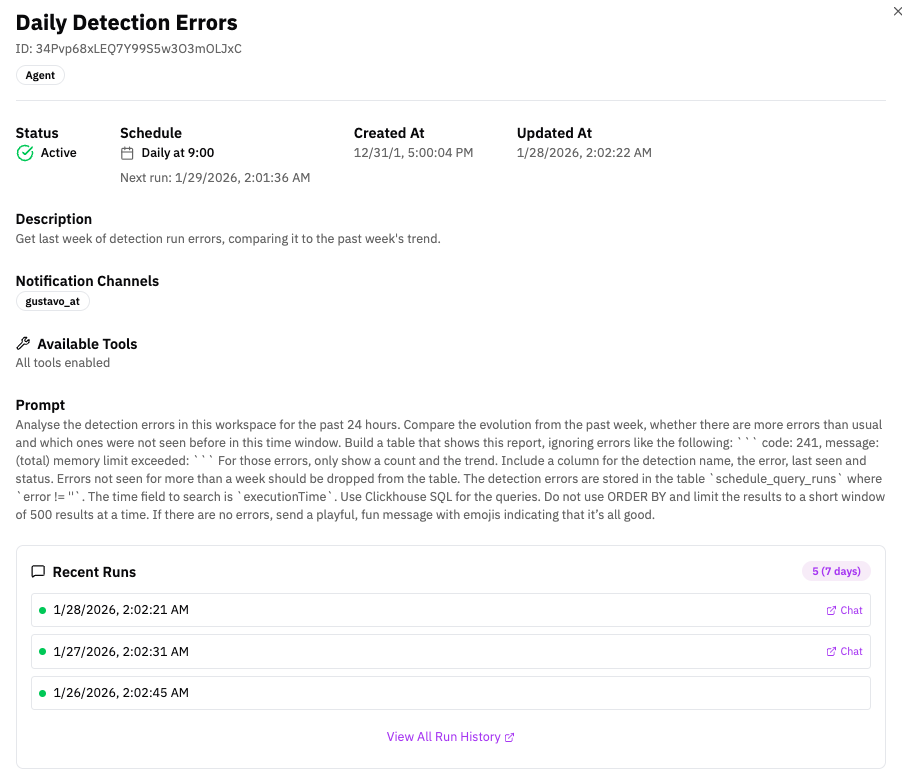
What Are Agents?
Agents are automated AI-powered tasks that run on a schedule to analyze your RunReveal data. They combine:
- AI capabilities (via providers and models configured per agent)
- Scheduled execution (cron-style schedules)
- Log/data analysis using your workspace tables and tools
Why Use Agents?
Security teams are drowning in data. Logs pile up faster than anyone can review them. Detections fire, but context is scattered. By the time you piece together what happened, the window to act has already closed.
Agents change that.
Instead of waiting for a human to ask the right question, agents ask it for you—every hour, every day, on whatever schedule you set. They query your logs, analyze patterns, and deliver findings directly to your inbox before your morning coffee.
Agent Use Cases:
- Daily situational awareness. Start each day knowing what happened overnight—critical detections, anomalous logins, privilege escalations—without lifting a finger.
- Proactive threat hunting. Surface risky actors, unusual data volumes, or policy violations automatically. Catch what static rules miss.
- Continuous compliance. Generate weekly access reviews, audit summaries, or policy violation reports on a schedule that satisfies auditors.
- Faster investigations. When an incident occurs, agents have already been watching. The context you need is waiting in your run history.
- Automated investigation triage. Use agents to triage detection alerts automatically when they fire. See Automated Investigations for how to enable AI Triage on a detection and assign an agent.
Agents don't replace your team—they amplify it. Every scheduled run is one less manual query, one less dashboard refresh, one less thing to remember. The AI handles the repetitive analysis; your team focuses on decisions and response.
Set a prompt. Pick a schedule. Let the agent do the rest.
See it in action: The blog post Introducing RunReveal's Autonomous Security Operations Agent (blog) includes videos showing automated alert triage and a short walkthrough of building your own agent in the UI.
In the UI
Review Agents
-
In the sidebar, open Agents.
-
Use Search agents… to quickly find an agent by name.
-
Review the table columns:
- Status: whether the agent is currently active
- Name: agent display name
- Description: brief purpose of the agent
- Schedule: cron expression or a friendly schedule label (depending on how it was set)
- Next Run: next scheduled execution time
- Actions: open the overflow menu (
…) for agent actions
-
Click an agent row to open the Agent Overview.
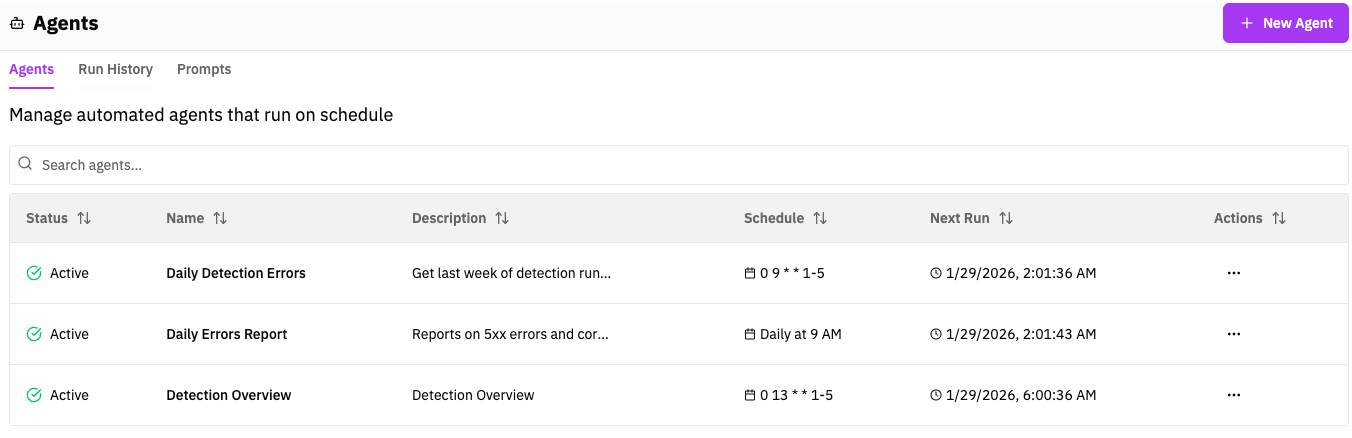
Agent Overview
In the Agent Overview you can review:
- Status and Schedule, plus Created At / Updated At
- Description
- Notification Channels (who will receive the output)
- Available Tools (may show "All tools enabled")
- Prompt (the exact instruction the agent runs)
- Recent Runs (with a Chat link for each run)
- A shortcut to View All Run History
Tip: If an agent is not producing expected results, open a recent run's Chat first—this is the fastest way to see what the agent actually queried and returned.
Run History and Prompts tabs
From the Agents page header you can also switch between:
- Run History: view executions across agents (successes/errors, and open the associated chat)
- Prompts: manage reusable prompt templates (if enabled in your workspace)
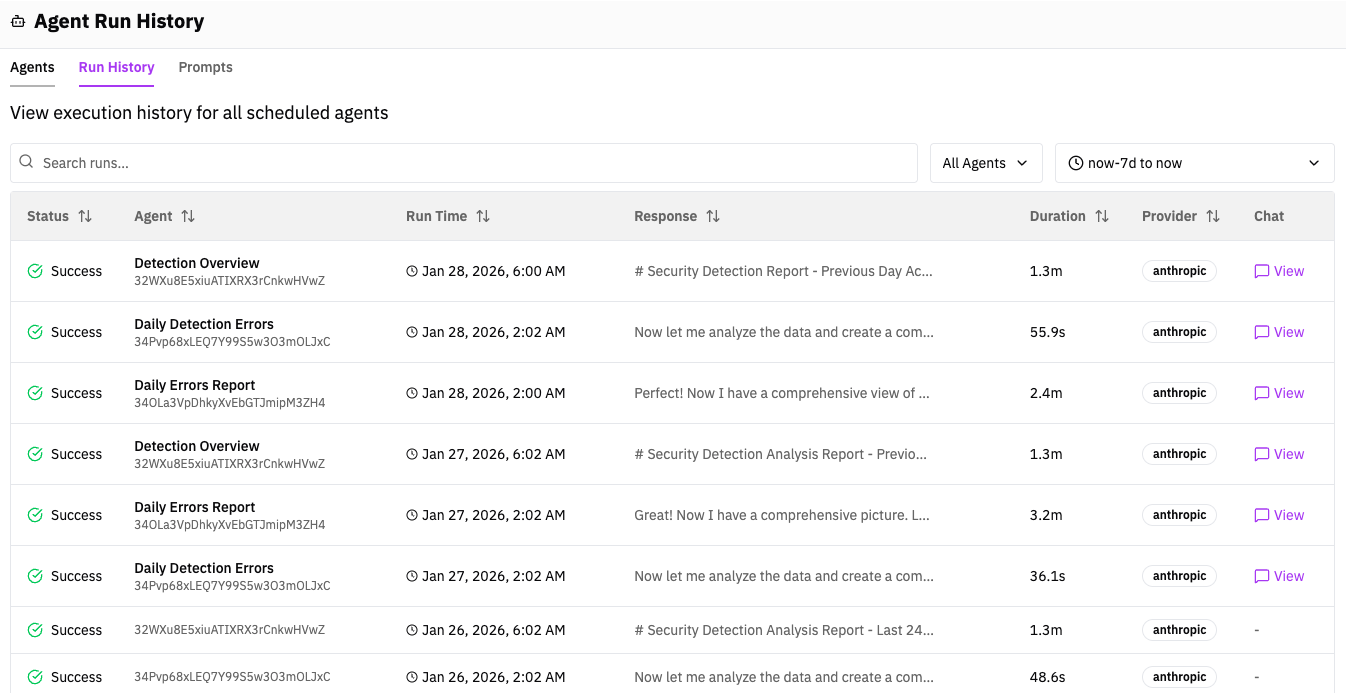
Create New Agents
To create a new agent, click + New Agent on the Agents page.
For a short video walkthrough of creating an agent (prompt, tools, schedule, model), see Introducing RunReveal's Autonomous Security Operations Agent (blog).
The Create Agent page is structured in the following order.
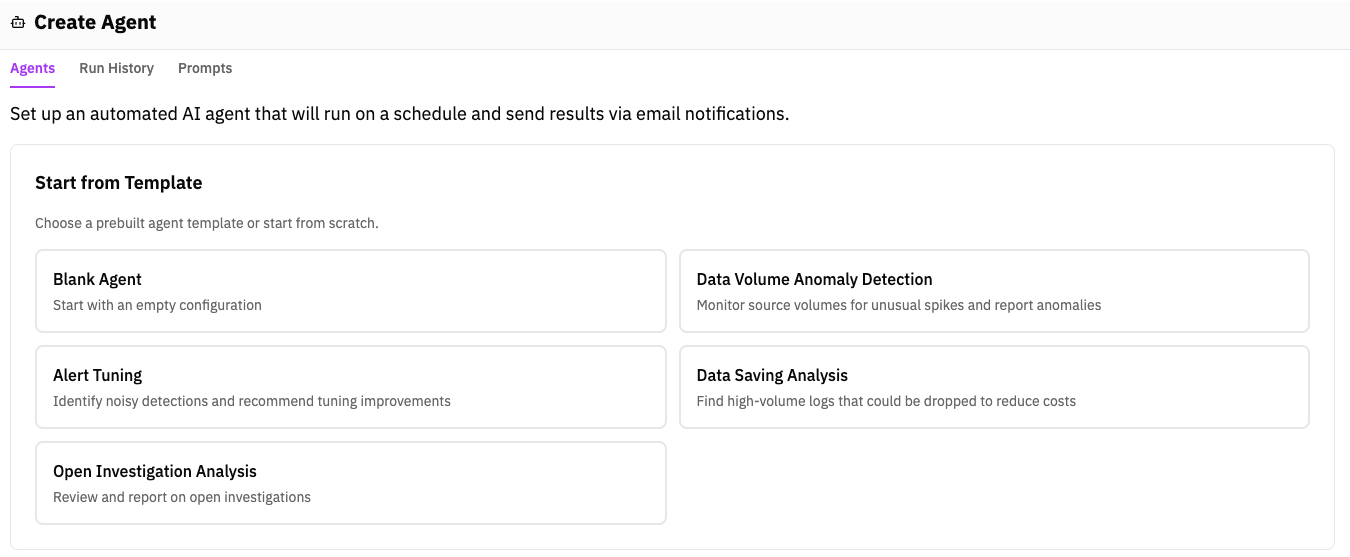
1. Start from Template
Choose a prebuilt template or start from scratch. Templates pre-fill fields like the AI Prompt (and may pre-fill schedule depending on the template).
| Template | What it does |
|---|---|
| Blank Agent | Start from scratch with an empty configuration. Use when you have a specific, custom use case in mind. |
| Weekly Threat Hunt | Runs a scheduled hunt across your logs, surfaces suspicious activity, and delivers an executive summary plus hunt report. Does not create detections. |
| Audit Sources & Detections | Reviews your current source and detection coverage and suggests gaps (including candidate detections and data sources). |
| Alert Tuning | Analyze noisy or low-value detections and recommend tuning improvements to reduce alert fatigue. |
| Data Volume Anomaly Detection | Monitor log source volumes for unusual spikes or drops and surface anomalies that may indicate issues. |
| Data Saving Analysis | Identify high-volume, low-value logs that could be filtered or dropped to reduce storage costs. |
| Open Investigation Analysis | Review open investigations and generate status summaries, recommended next steps, or stale investigation alerts. |
Weekly Threat Hunt
The Weekly Threat Hunt template is a prebuilt scheduled agent (not auto-enabled). Create it from Agents → + New Agent → Weekly Threat Hunt, then set your model provider, tools, and notification channels and enable the agent.
- Default schedule:
0 9 * * 1(Mondays at 09:00) - Tools: Query tools plus detection read tools (hunt and report only)
- Output: Executive summary and hunt report (targets, suspicious activity with events/actors/timestamps, ATT&CK techniques checked, and coverage gaps it could not search), delivered through the agent's notification channels
- Scope: The template instructs the agent not to recommend or create detections. Use Audit Sources & Detections if you want coverage recommendations
For ad-hoc (not scheduled) threat hunting in Native AI Chat, use the Threat Hunt chat wizard tile.
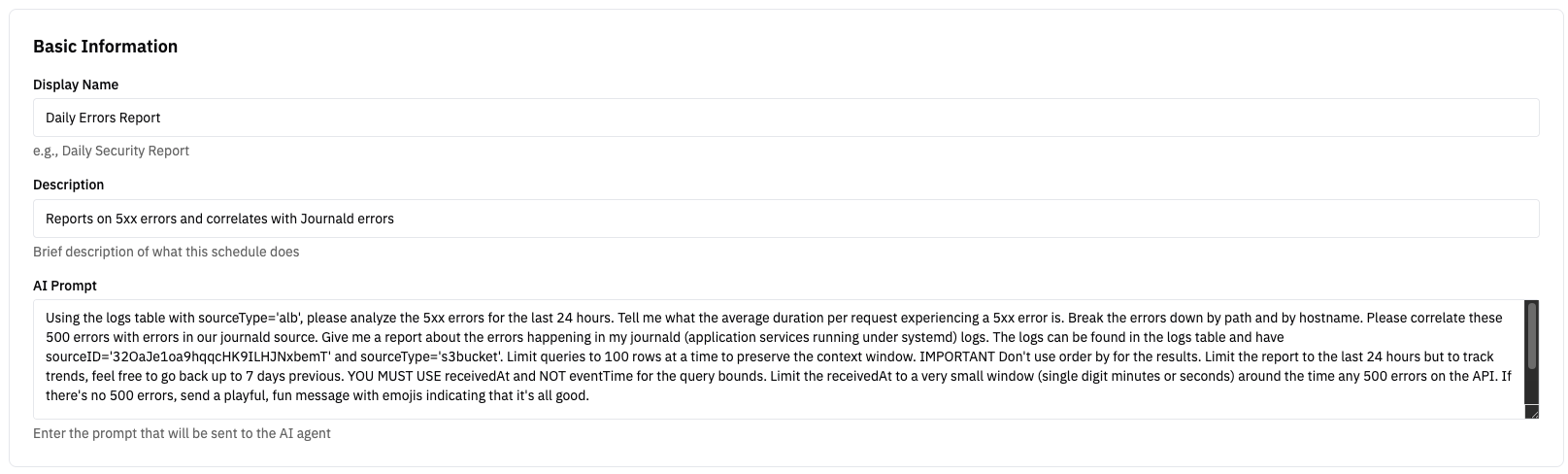
2. Basic Information
Fill in the fields that define what the agent does.
- Display Name: what appears in the Agents list and Agent Overview
- Description: short explanation of purpose
- AI Prompt: the full instruction sent to the model each run
Prompt writing guidance (practical):
- Specify exactly what tables to use (and the key filters to apply).
- Constrain time ranges and result sizes (use small
LIMITs). - Tell the agent what format you want back (bullets, grouped breakdowns, etc.).
3. AI Configuration
Select the provider/model for this agent.
- Choose the model that balances quality vs. cost for the task.
- If your workspace has a Default model, you can keep it or override per agent.

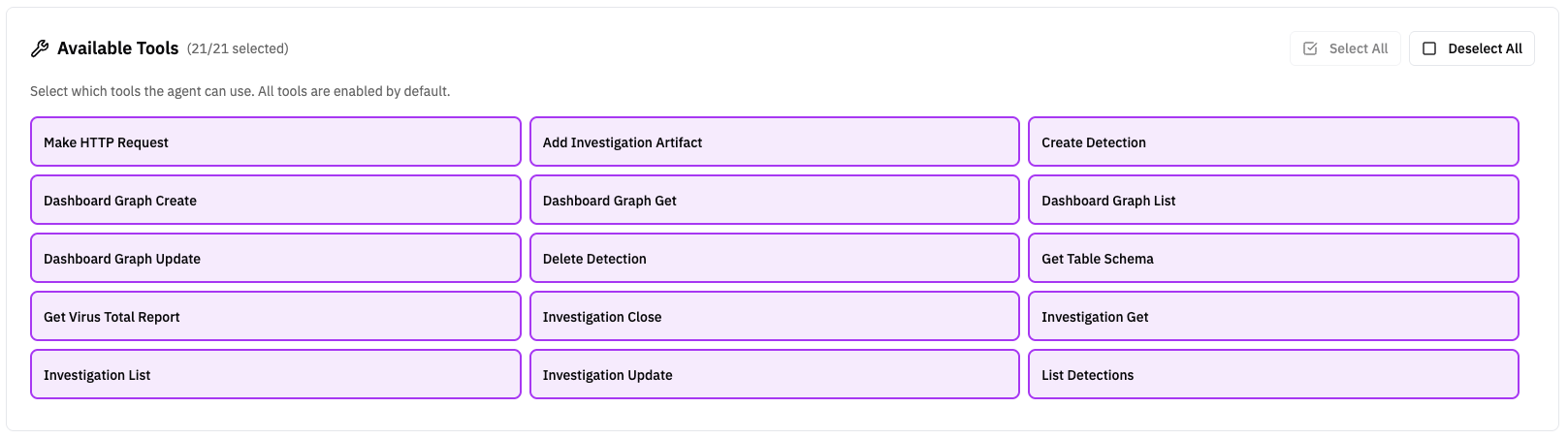
4. Available Tools
Select which tools the agent can call while running.
- Tools are enabled by default.
- Use Deselect All and then enable only what's required for least privilege.
- Keep tool access narrow for "reporting-only" agents.
The UI lists tool names in PascalCase (e.g. LogsQueryV3). The set comes from the workspace agent tool registry (GetChatTools / GetAgentTools in the API). The tables below match that registry; optional tools (threat intel) only appear when configured. Tab groups are aligned with the MCP tools reference, with extra tabs for workspace-only features (dashboards, filters, etc.).
| Tool | Description |
|---|---|
| LogsQueryV3 | Run ClickHouse SQL against your log data. Use small LIMIT values (10–50) for exploration; filter by indexed columns (e.g. receivedAt). Check schema with GetTableSchema first. |
| ListTables | List all tables available for querying in the workspace. |
| GetTableSchema | Get schema and indexes for a table (columns, types, primary key, data skipping indexes). |
| GetQueryHistory | Read query history for the workspace (recent runs). |
| SourceList | List log sources (optional filter by source types). |
In the agent form, you can Select All or Deselect All tools, or pick specific tools. Restrict tools when you want an agent to only query data (read-only) or only perform a narrow set of actions.
5. Schedule
Set when the agent runs using cron format.
- Cron Schedule format:
minute hour day month weekday
Examples:
0 9 * * *— daily at 09:000 8 * * 1— Mondays at 08:000 */6 * * *— every 6 hours

6. Notifications
Choose who receives the agent output by email.
- Select one or more Email Notifications channels.
- If none are selected, the workspace default email notification is used.

7. Settings
Finalize runtime behavior.
- Enabled: when on, the agent runs automatically on schedule
- Skip Permissions: admin-only; use sparingly. Keep off unless the agent is trusted and intentionally allowed to run without permission checks.

8. Create the agent
At the bottom-right of the page, click Create Agent to save.
Related Documentation
Now that you understand Agents, explore these related guides:
- Native AI Chat - Interactive AI-powered investigations in RunReveal
- Prompts - Create reusable prompt templates with arguments
- Model Context Protocol - Connect external AI assistants to RunReveal
- Detections - Create and manage detection rules
- Notifications - Set up alerting and notification channels
- Investigations - Manage and track security investigations
- Introducing RunReveal's Autonomous Security Operations Agent (blog) - AI agent for security operations, auto-triage, and incident response