

Managing Users
RunReveal supports role-based access control for managing team members in your workspace. You can invite users, assign roles, update permissions, and manage access through both the dashboard interface and the CLI.
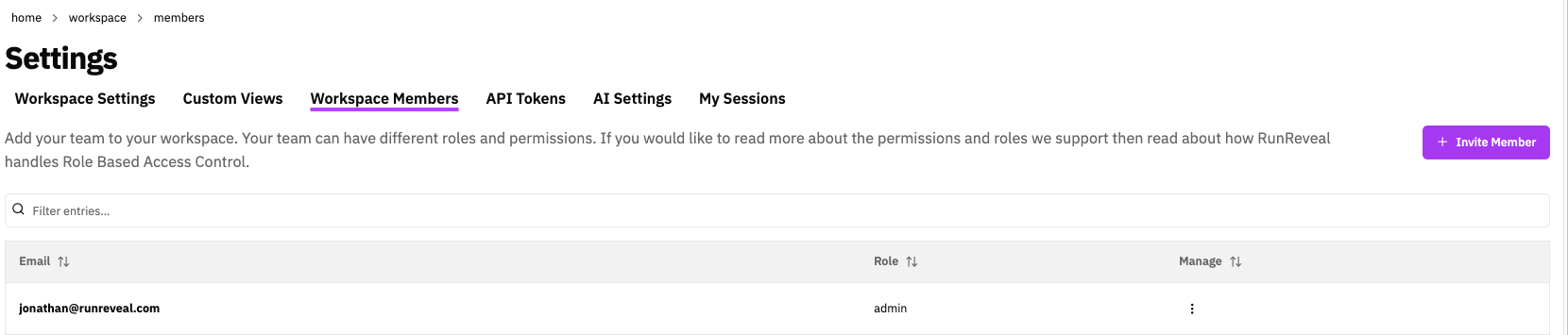
Inviting Users in Dashboard UI
SSO Users: If your organization has Single Sign-On (SSO) configured with Just-In-Time (JIT) provisioning enabled, users may be automatically created when they first authenticate via SSO. See the Single Sign-On (SSO) Configuration guide for details.
Navigate to Members
- Log into RunReveal
- Go to Settings → Workspace → Members
- You'll see a list of current workspace members with their roles and status
Invite a New User
- Click Invite member button
- Enter the user's email address
- Select the appropriate role from the dropdown:
- Admin: Full access to all workspace features
- Analyst: Can manage detections and queries, read-only access to sources
- Operator: Read-only access, can run queries and view data
- CIBot: Designed for CI/CD automation, can manage detections
- Click Send Invitation
Verify Invitation Status
After sending the invitation:
- The user will appear in the members list with status "Pending"
- An email invitation is sent to the user's email address
- The user must accept the invitation to join the workspace
- Once accepted, the status changes to "Active"
Updating User Roles in Dashboard UI
Access User Management
- Navigate to Settings → Workspace → Members
- Find the user whose role you want to update
- Click on the user
Change User Role
- Click Update role
- Select the new role from the role dropdown
- Click Save or Update
- The user's permissions will be updated immediately
Role Changes: Changing a user's role takes effect immediately. Users may need to refresh their browser session to see updated permissions.
Remove a User
- Navigate to Settings → Workspace → Members
- Find the user you want to remove
- Click Remove or Delete (admin-only action)
- Confirm the removal
Note: Removing a user immediately revokes their access to the workspace. They will no longer be able to log in or access workspace data.
Managing Users via CLI
The RunReveal CLI provides commands for managing workspace users programmatically. The following commands are available:
runreveal api workspace users-add- Invite a new user to the workspace with a specified rolerunreveal api workspace users-list- List all users in the workspace with their roles and statusrunreveal api workspace users-del- Remove a user from the workspace
For detailed command syntax, parameters, and examples, see the Using the CLI documentation.
User Status and Invitations
Pending Invitations
When you invite a user, they receive an email invitation with a signup link. Until they accept:
- Status shows as "Pending" in the members list
- User cannot access the workspace
- Invitation can be resent or cancelled by admins
Email Not Received? If the invited user doesn't receive the invitation email, ask them to check their spam or junk folder. Some email providers may filter automated invitations. You can also resend the invitation from the workspace members page.
Active Users
Once a user accepts the invitation:
- Status changes to "Active"
- User can log in and access the workspace
- Permissions are based on their assigned role
Resending Invitations
If a user hasn't received or lost their invitation email:
- Navigate to Settings → Workspace → Members
- Find the user with "Pending" status
- Click Resend Invitation
- A new invitation email will be sent
User Roles
RunReveal provides four default roles with different permission levels:
| Role | Detections | Sources | Workspace Settings | Query Access |
|---|---|---|---|---|
| Admin | ✓ Edit | ✓ Edit | ✓ Edit | ✓ |
| Analyst | ✓ Edit | Read-only | Read-only | ✓ |
| Operator | Read-only | Read-only | Read-only | ✓ |
| CIBot | ✓ Edit | Read-only | Read-only | ✓ |
For detailed information about role permissions and capabilities, see the Role-Based Access Control guide.
Custom Roles
In addition to the default roles, RunReveal supports custom roles that provide fine-grained access control by combining UI/API permissions with data-level restrictions.
For detailed information on creating, configuring, and managing custom roles, including UI/API permissions, data access controls, and log filtering options, see the Role-Based Access Control guide.
Related Documentation
- Role-Based Access Control - Detailed permissions and role capabilities
- Using the CLI - Complete CLI command reference
- Single Sign-On (SSO) - Configure SSO for enterprise authentication
- RunReveal Audit Logs - Monitor user management actions