

Wiz Threats
Wiz threat data is sent to RunReveal via a webhook configured in your Wiz environment using Automation Rules.
Setup
To setup your Wiz Threats source, start by creating the source in RunReveal to fetch your WebhookURL that you'll configure in Wiz. You'll be given a webhook after creating the source via a popup.
Configure Wiz Webhook Integration
In your Wiz environment, you'll need to setup a webhook integration and create an Automation Rule to send threat data to RunReveal.
Create a Wiz Webhook Integration
To set up your webhook integration in Wiz, follow these steps:
- Navigate to your Wiz console
- In the left hand sidebar, navigate to Settings → Integrations
- In the upper right corner, click "+ Add Integration" and select "Webhook"
- Name the integration something memorable, such as "RunReveal"
- Under "Scope", if you wish to limit project access to RunReveal, assign the Webhook to a selected project. Otherwise, click "All Projects"
- Under "URL", paste in your RunReveal webhook URL (you'll get this when creating the source in RunReveal)
- Click "Save"
Setup Automation Rule
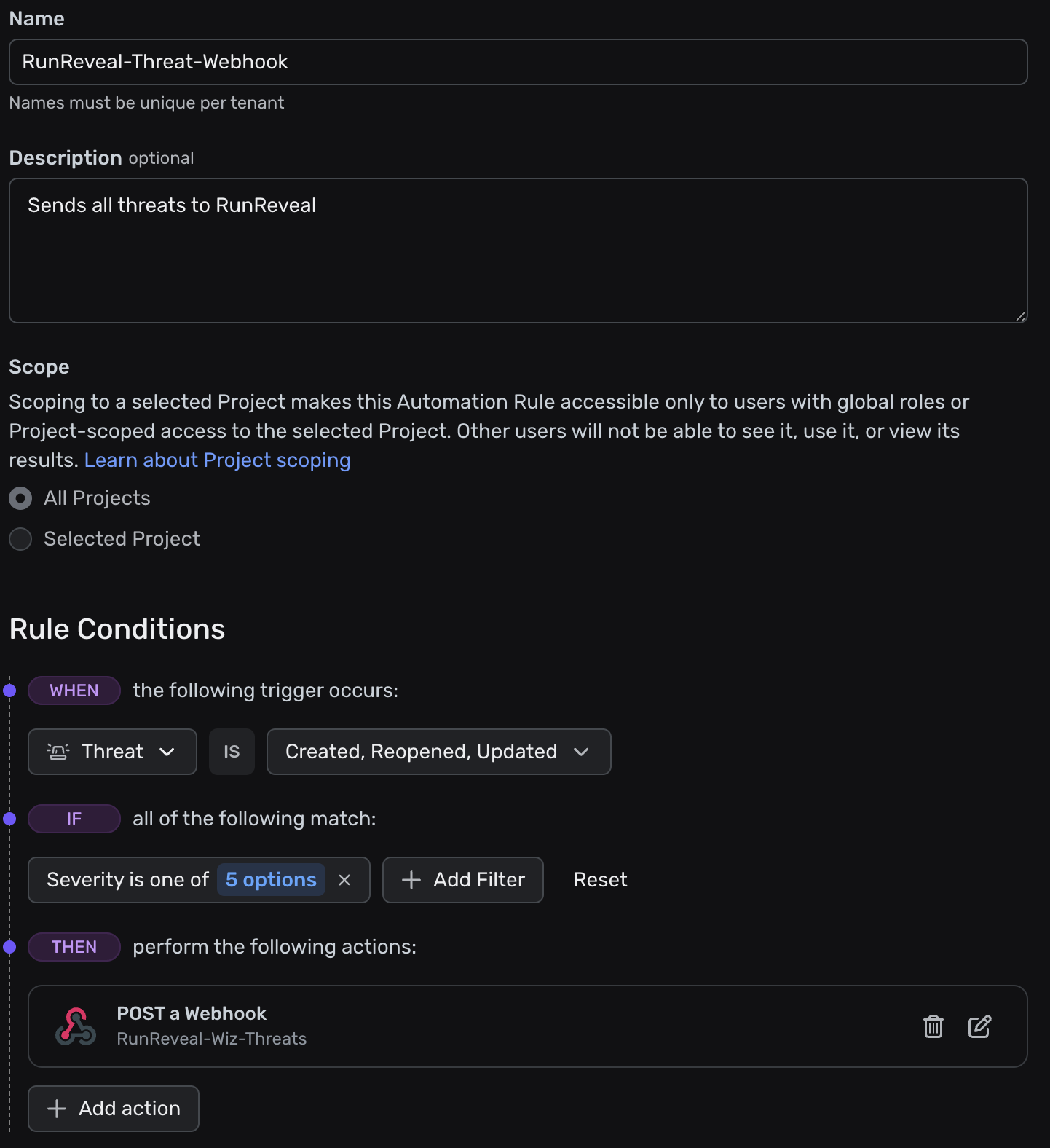
To create an automation rule in Wiz, follow these steps:
- In the left sidebar of your Wiz console, navigate to Policies → Automation Rules
- In the upper right corner, click "+ Add Rule"
- Name the automation rule something memorable, such as "Wiz Detections to RunReveal"
- You may choose to add a description, such as "RunReveal Threat Forwarding Rule"
- Under "Scope", if you wish to limit project access to RunReveal, assign the Automation rule to a selected project. Otherwise, click "All Projects"
- In the "Rule Conditions" section, set the "When" condition to "Detection is Created"
- In the "If" section, you may choose the severity levels you wish RunReveal to ingest. Set the "If" condition to "Severity is "Critical" or "High" or "Medium" (or your desired severity level)
- In the "Then" section, click "+ Add action"
- Select "POST a Webhook"
- Select the webhook integration you created earlier (e.g., "RunReveal")
- In the "Request Body" section, replace the default action template with the JSON template provided below
- Click "Add Action"
- Once returned to the New Automation Rule page, click "Save"
Once this step has been committed, Wiz will start sending its alerts directly to RunReveal.
Action Template
Configure your Automation Rule with the following action template:
Schema
The following columns are exposed for this source. RunReveal applies schema normalization across all sources, ensuring uniform field names and data types for cross-source queries and reusable detection logic.
Table: wiz_threat_webhook_logs (63 columns)
wiz_threat_webhook_logs (63 columns)| Column | Type |
|---|---|
workspaceID | String |
sourceID | String |
sourceType | String |
sourceTTL | UInt32 |
receivedAt | DateTime |
id | String |
eventTime | DateTime |
eventName | String |
eventID | String |
srcIP | String |
srcASCountryCode | String |
srcASNumber | UInt32 |
srcASOrganization | String |
srcCity | String |
srcConnectionType | String |
srcISP | String |
srcLatitude | Float64 |
srcLongitude | Float64 |
srcUserType | String |
dstIP | String |
dstASCountryCode | String |
dstASNumber | UInt32 |
dstASOrganization | String |
dstCity | String |
dstConnectionType | String |
dstISP | String |
dstLatitude | Float64 |
dstLongitude | Float64 |
dstUserType | String |
actor | Map(String, String) |
tags | Map(String, String) |
resources | Array(String) |
| Column | Type |
|---|---|
serviceName | String |
enrichments | Array(Tuple(data Map(String, String), name String, provider String, type String, value String)) |
readOnly | Bool |
rawLog | String |
threatId | String |
threatTitle | String |
threatDescription | String |
threatStatus | String |
threatSeverity | String |
threatCreated | DateTime |
threatUpdatedAt | DateTime |
threatResolutionNote | String |
threatProjects | String |
threatURL | String |
threatResolvedAt | String |
threatCloudPlatform | String |
threatCloudAccounts | Array(String) |
threatCloudOrganizations | Array(String) |
threatActors | Array(String) |
threatResources | Array(String) |
threatTdrSources | String |
threatDetectionIds | String |
threatMitreTechniques | Array(String) |
threatMitreTactics | Array(String) |
threatNotes | String |
triggerSource | String |
triggerType | String |
triggerRuleId | String |
triggerRuleName | String |
triggerUpdatedFields | String |
triggerChangedBy | String |
Table: wiz_issue_webhook_logs (61 columns)
wiz_issue_webhook_logs (61 columns)| Column | Type |
|---|---|
workspaceID | String |
sourceID | String |
sourceType | String |
sourceTTL | UInt32 |
receivedAt | DateTime |
id | String |
eventTime | DateTime |
eventName | String |
eventID | String |
srcIP | String |
srcASCountryCode | String |
srcASNumber | UInt32 |
srcASOrganization | String |
srcCity | String |
srcConnectionType | String |
srcISP | String |
srcLatitude | Float64 |
srcLongitude | Float64 |
srcUserType | String |
dstIP | String |
dstASCountryCode | String |
dstASNumber | UInt32 |
dstASOrganization | String |
dstCity | String |
dstConnectionType | String |
dstISP | String |
dstLatitude | Float64 |
dstLongitude | Float64 |
dstUserType | String |
actor | Map(String, String) |
tags | Map(String, String) |
| Column | Type |
|---|---|
resources | Array(String) |
serviceName | String |
enrichments | Array(Tuple(data Map(String, String), name String, provider String, type String, value String)) |
readOnly | Bool |
rawLog | String |
issueId | String |
issueStatus | String |
issueSeverity | String |
issueCreated | DateTime |
issueProjects | String |
controlId | String |
controlName | String |
controlDescription | String |
controlSeverity | String |
controlRisks | Array(String) |
resourceId | String |
resourceName | String |
resourceType | String |
resourceStatus | String |
resourceRegion | String |
resourceCloudPlatform | String |
resourceCloudProviderURL | String |
resourceSubscriptionId | String |
resourceSubscriptionName | String |
triggerSource | String |
triggerType | String |
triggerRuleId | String |
triggerRuleName | String |
triggerUpdatedFields | String |
triggerChangedBy | String |