

Filtering
Filters are reusable rules that match events based on regex patterns and drop them when they match. Unlike the simpler Drop step, filters can be shared across pipelines and applied globally.
Filters are created in Settings → Filters and can be applied globally or attached to specific pipelines as a Filter step.
Filter action
When an event matches a filter, it is dropped: it is permanently discarded and not indexed or forwarded.
Filter Types
Regex Filtering
Regex filters match a pattern against the entire raw log JSON. This is powerful for matching any content in the event, regardless of field structure.
How Regex Matching Works
The regex pattern is matched against the entire raw log JSON string, not a specific field. This means you can match any content anywhere in the event.
Pattern Format
Filters use the format /pattern/flags where:
- The pattern is enclosed in forward slashes
- Flags are appended after the closing slash
Supported Flags:
| Flag | Description | Example |
|---|---|---|
i | Case insensitive matching | /healthcheck/i matches "HealthCheck", "HEALTHCHECK", etc. |
RE2 Syntax: RunReveal uses RE2 regex syntax (Go's regexp). Test patterns at regex101.com with the Golang flavor selected. Note: RE2 does not support lookaheads, lookbehinds, or backreferences.
Source Filtering
Source filters match events from specific log sources. When you select sources for a filter, only events from those sources are evaluated against the filter pattern.
Where do matched events go?
Dropped events are not stored in ClickHouse (they will not appear in Explore) and are not sent to destinations.
Global vs Source-Specific Filters
Filters can be configured to apply globally or only to specific sources:
| Scope | Behavior | Use Case |
|---|---|---|
| Global | Applies to all events from all sources | Health check patterns that appear across multiple sources |
| Source-Specific | Only applies to events from selected sources | CloudTrail-specific patterns that shouldn't affect other sources |
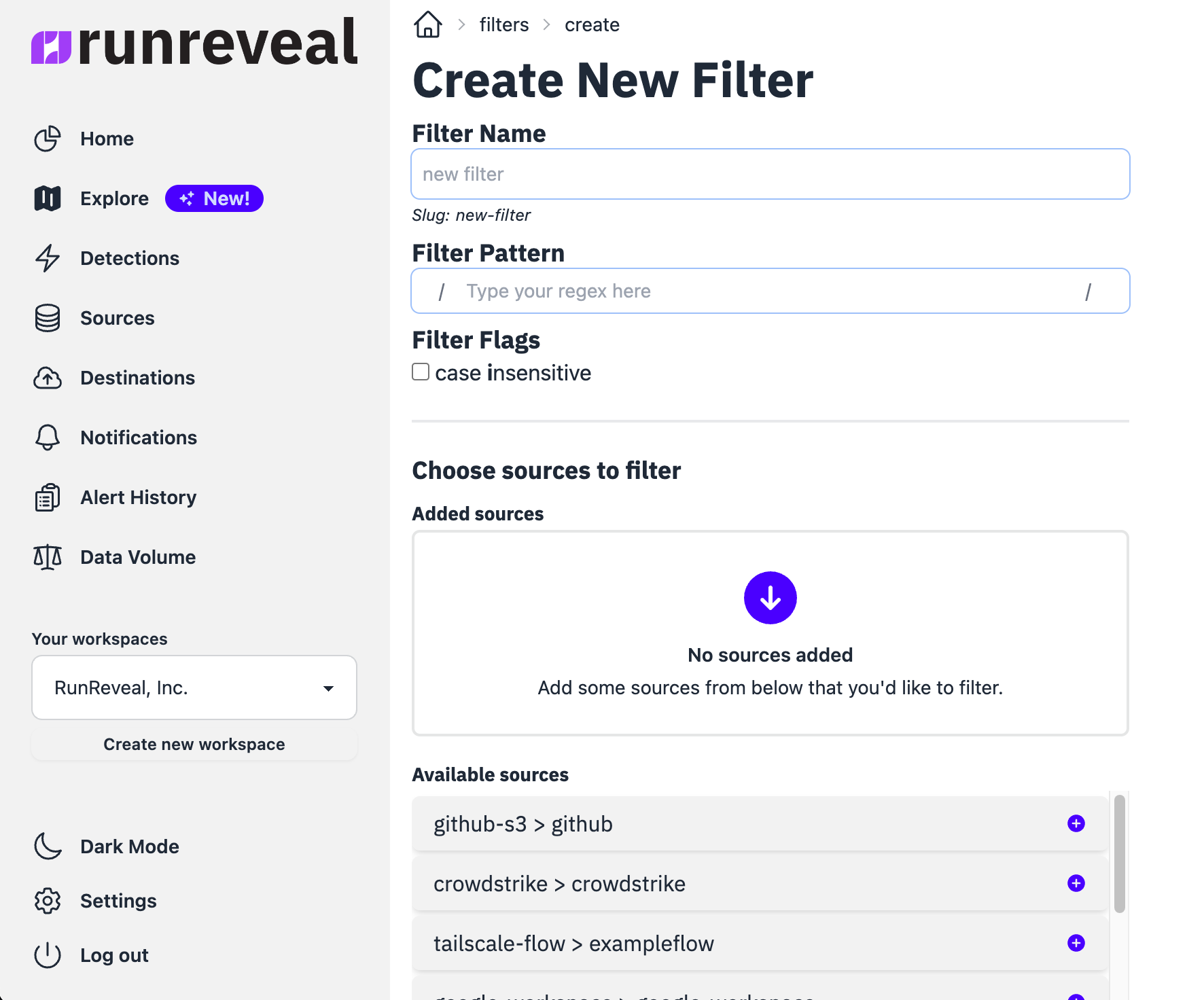
Creating a Filter
Step 1: Navigate to Filters
Go to Settings → Filters → Click Create Filter
Step 2: Configure Filter Settings
Enter a Name and optional Description → Select Filter Type (Regex) → Enter your Pattern
Step 3: Choose Scope
Choose Global or select specific Sources
Using Filters in Pipelines
Filters can be attached to pipelines as a Filter step. This allows you to apply reusable filter rules at specific points in your pipeline.
Step 1: Edit Your Pipeline
Go to Pipelines → Select your pipeline → Click Edit
Step 2: Add Filter Step
Drag a Filter step from the right column → Select the filter you created → Optionally add preconditions
When using a Filter step in a pipeline, the filter's source restrictions are bypassed—the filter will apply to any event that reaches the step (subject to the step's preconditions).
Use Cases
Drop Health Check Traffic
Health checks from load balancers, Kubernetes, and monitoring systems generate constant traffic. Drop these events to reduce volume and cost when you do not need them for analysis.
Drop AWS Read-Only API Calls
AWS CloudTrail generates high volumes of read-only API calls (Describe, List, Get) that often have limited security value. Drop these to reduce costs.
Drop Okta System Events
Okta generates system-level events that are typically not security-relevant. Drop them when you do not need them in Explore.
Filter vs Drop Step
| Feature | Filter | Drop Step |
|---|---|---|
| Reusable | ✅ Yes - share across pipelines | ❌ No - pipeline-specific |
| Matching | Regex on entire raw log | Preconditions on specific fields |
| Global Application | ✅ Yes - can apply to all sources | ❌ No - only within pipeline |
| Configuration | Separate filter management UI | Inline in pipeline editor |
When to use Filter:
- You want reusable drop rules across multiple pipelines
- You want to match patterns anywhere in the raw log
When to use Drop:
- Simple, one-off dropping within a single pipeline
- You want to match on specific normalized fields using preconditions
Common Patterns
| Use Case | Pattern | Description |
|---|---|---|
| Health checks | /HealthCheck|health|ready|live/i | Match common health check endpoints |
| AWS internal | /"invokedBy":"AWS Internal"/ | AWS service-to-service calls |
| Bot traffic | /bot|crawler|spider/i | Known bot user agents |
| Debug logs | /"level":"debug"/i | Debug-level log entries |
| Specific IPs | /10\.0\.0\.\d+/ | Match IP address patterns |