

Salesforce AuditTrail
Collect audit trail logs from Salesforce to monitor setup changes and administrative actions.
The Salesforce Audit Trail source works by polling your Salesforce Audit Trail logs every 15 minutes. Salesforce stores Audit Trail logs for 180 days, RunReveal will backfill your Salesforce Audit Trail logs with everything that is available.
Setup
Salesforce AuditTrail supports API polling to collect audit logs from your Salesforce account using OAuth 2.0 client credentials.
Step 1: Create the External Client App
- In Salesforce, go to Setup (click the gear icon)
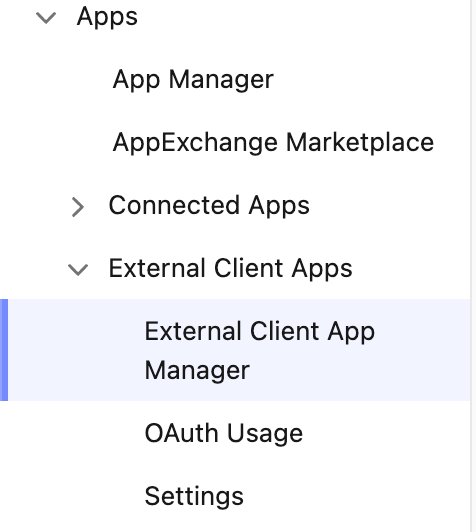
- In the Quick Find box, search for "External Client App Manager" (or go to Apps → External Client Apps → External Client App Manager in the sidebar)
- Click "New External Client App" in the top right
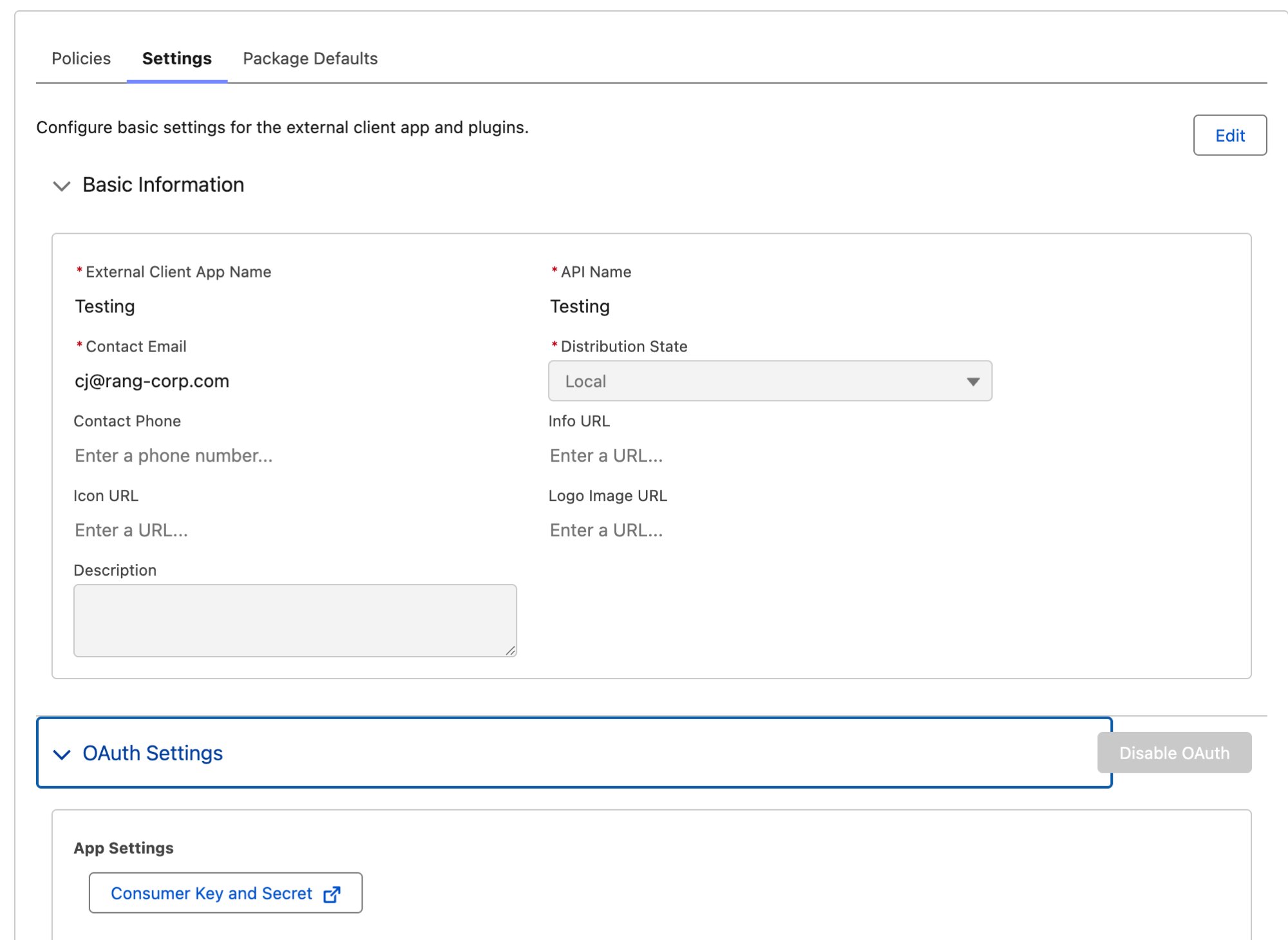
- Fill in the basic information:
- Connected App Name: Your integration name (e.g. "RunReveal")
- API Name: Auto-fills based on the name
- Contact Email: Your email

Step 2: Configure OAuth Settings
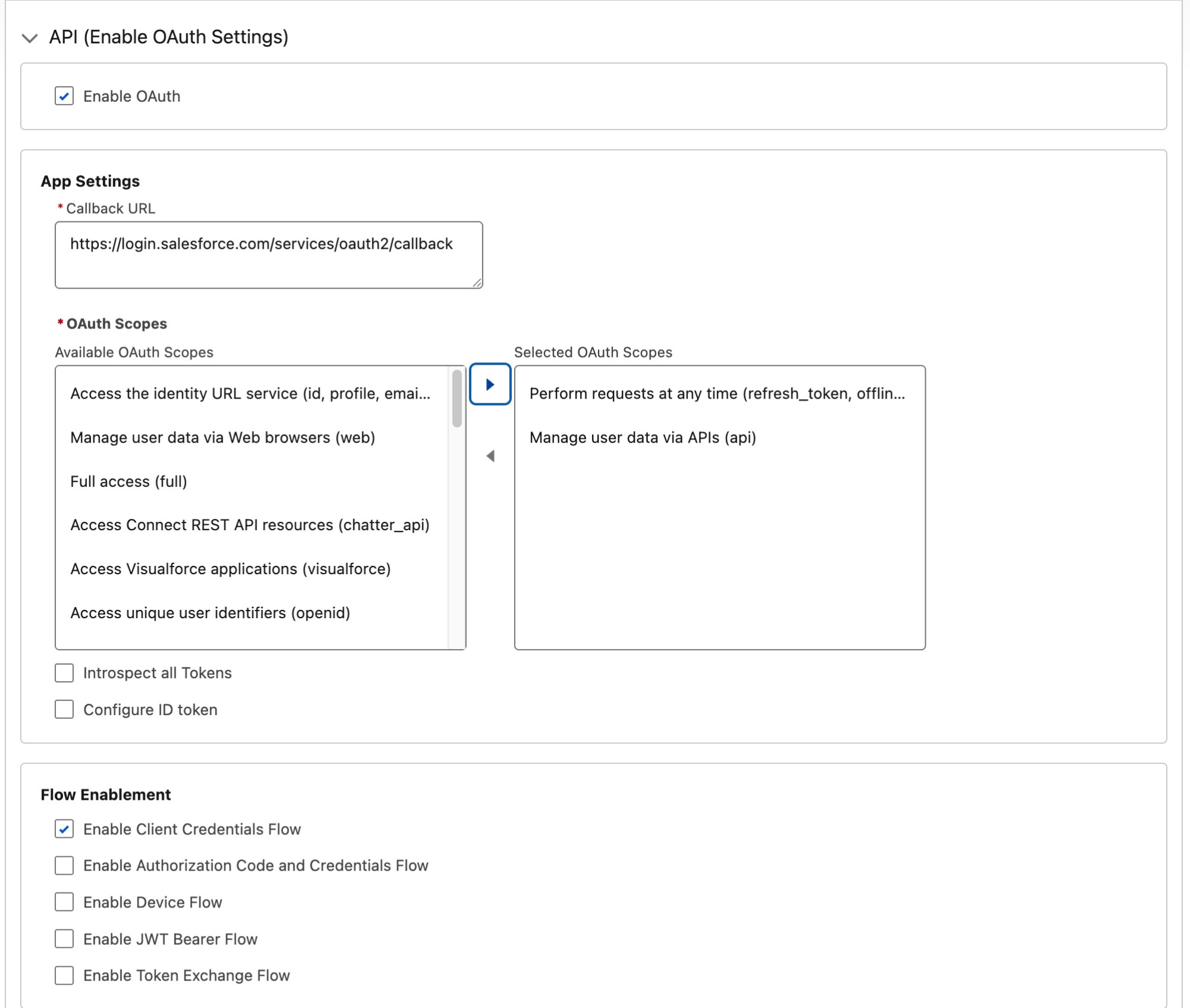
- Check "Enable OAuth Settings"
- Set Callback URL to:
https://login.salesforce.com/services/oauth2/callback - Under Selected OAuth Scopes, add the following scopes:
Perform requests at any time (refresh_token, offline_access)Manage user data via APIs (api)
- Check "Enable Client Credentials Flow"
- Click "Create"
Step 3: Enable Client Credentials Flow
- Edit the app you just created
- Check "Enable Client Credentials Flow"
- In the "Run As" field, search for and select the execution user
The Run As user must have "API Enabled", "View All Data", and "View Setup and Configuration" permissions.
View Setup and Configuration is what grants access to the SetupAuditTrail object. Without it, Salesforce
hides the object from that user entirely rather than returning a permission error, and log collection stops.

Step 4: Save and Retrieve Credentials
- Click "Save"
- Click "Continue" on the confirmation page
- You'll see the Consumer Key displayed immediately
- Click "Manage Consumer Details" to view the Consumer Secret
- Salesforce will send a verification code to your email — enter it to proceed
Step 5: Connect in RunReveal
- Go to Sources in RunReveal
- Click the Salesforce AuditTrail source tile
- Give it a name and fill in the required fields:
- Salesforce Instance Host: Your Salesforce instance URL (e.g.
company.my.salesforce.com) - Client ID: The Consumer Key from Step 4
- Client Secret: The Consumer Secret from Step 4
- Salesforce Instance Host: Your Salesforce instance URL (e.g.
- Click Connect Source

Video Walkthrough
Verify It's Working
Once added the source logs should begin flowing within a minute.
You can validate we are receiving your logs by running the following SQL query.
Troubleshooting
Missing audit logs (or collection stopped)
If audit logs never appear, stop after working, or you see an error about Salesforce tables the user cannot see, the usual cause is the Run As user on the External Client App. Salesforce hides objects a user cannot read instead of returning a clear permission error. A profile, permission-set, or Run As user change on the Salesforce side is enough for collection to stop — we did not need to change anything on our side.
Confirm that user's profile (or permission sets) still includes:
| Permission | Needed for |
|---|---|
| API Enabled | Both Audit Trail and Event Logs |
| View Setup and Configuration | Audit Trail (SetupAuditTrail) |
| View All Data | Event Logs — required if the same app also feeds that source |
| View Event Log Files | Event Logs (EventLogFile) — required if the same app also feeds that source |
If collection worked previously, check in this order:
- The External Client App's Client Credentials Flow → Run As user was reassigned.
- That user's profile, permission sets, or user license changed (including losing View Setup and Configuration).
If one External Client App feeds both this source and Salesforce Event Logs, its Run As user needs the permissions for both. Changing the Run As user or its profile to suit one source will silently stop the other, because a Client Credentials Flow has exactly one Run As user.
sObject type 'SetupAuditTrail' is not supported
Salesforce returns this INVALID_TYPE error when the Run As user cannot read the SetupAuditTrail object. The
wording is misleading — the object has existed since API version 15.0 and has not been removed. A missing
permission and a nonexistent object produce the same error.
Grant View Setup and Configuration and API Enabled, as described above and in Step 3.
The change itself is recorded in the Setup Audit Trail, under the Manage Users and External Client Application
sections. Because collection stops at that moment, the relevant entries may fall just outside what RunReveal
ingested — check Setup → View Setup Audit Trail in Salesforce directly. Once access is restored, polling
resumes from where it stopped and backfills the gap, so the entries appear in RunReveal retroactively.
Schema
The following columns are exposed for this source. RunReveal applies schema normalization across all sources, ensuring uniform field names and data types for cross-source queries and reusable detection logic.
Table: salesforce_audittrail_logs (44 columns)
salesforce_audittrail_logs (44 columns)| Column | Type |
|---|---|
workspaceID | String |
sourceID | String |
sourceType | LowCardinality(String) |
sourceTTL | UInt32 |
receivedAt | DateTime |
id | String |
eventTime | DateTime |
eventName | String |
eventID | String |
srcIP | String |
srcASCountryCode | String |
srcASNumber | UInt32 |
srcASOrganization | String |
srcCity | String |
srcConnectionType | String |
srcISP | String |
srcLatitude | Float64 |
srcLongitude | Float64 |
srcUserType | String |
dstIP | String |
dstASCountryCode | String |
dstASNumber | UInt32 |
| Column | Type |
|---|---|
dstASOrganization | String |
dstCity | String |
dstConnectionType | String |
dstISP | String |
dstLatitude | Float64 |
dstLongitude | Float64 |
dstUserType | String |
actor | Map(String, String) |
tags | Map(String, String) |
resources | Array(String) |
serviceName | String |
enrichments | Array(Tuple(data Map(String, String), name String, provider String, type String, value String)) |
readOnly | Bool |
rawLog | String |
Id | String |
ACTION | String |
CreatedById | String |
CreatedByIssuer | String |
CreatedDate | String |
DelegateUser | String |
Display | String |
Section | String |
Related Documentation
For more information on configuring and using the Salesforce AuditTrail source:
- External Client Apps in Salesforce - Step-by-step guide to creating the Connected App and retrieving your Client ID and Client Secret
- SetupAuditTrail Object Reference - Salesforce developer documentation for the SetupAuditTrail object that RunReveal queries
- Salesforce Event Logs — EventLogFile source; same Connected App can feed both. If Event Logs also stopped, check View Event Log Files and View All Data on the Run As user.