

Health Checks
Health checks provide automated monitoring for your log sources, alerting you when a source stops sending logs or experiences issues. This helps ensure your security monitoring has continuous visibility and that data gaps are detected quickly.
For destination write/delivery monitoring, see Destination Health Checks.

Overview
When you configure a health check on a source, RunReveal will periodically evaluate whether logs are being received according to your defined criteria. If the health check fails (e.g., no logs received within the expected timeframe), RunReveal will alert your configured notification channels.
Health checks help you:
- Detect data gaps early - Know immediately when a source stops sending logs
- Maintain visibility - Ensure your security monitoring has complete coverage
- Reduce blind spots - Avoid discovering missing data only when you need it for an investigation
Configuring Health Checks
Health checks can be configured when creating or editing a source. You can add multiple health checks to a single source, each with different criteria and notification settings.
Adding a Health Check
- Navigate to your source's edit page
- Scroll to the Health Checks section
- Click "Add Health Check"
- Select the type of health check you want to configure
- Configure the settings (described below)
- Save your source
Health Check Types
RunReveal provides different types of health checks to monitor various aspects of your sources:
- Log Volume - Monitors that logs are being received within a specified time window
- Additional health check types may be available depending on your source type
Common Configuration Fields
When configuring a health check, you'll encounter these common fields:
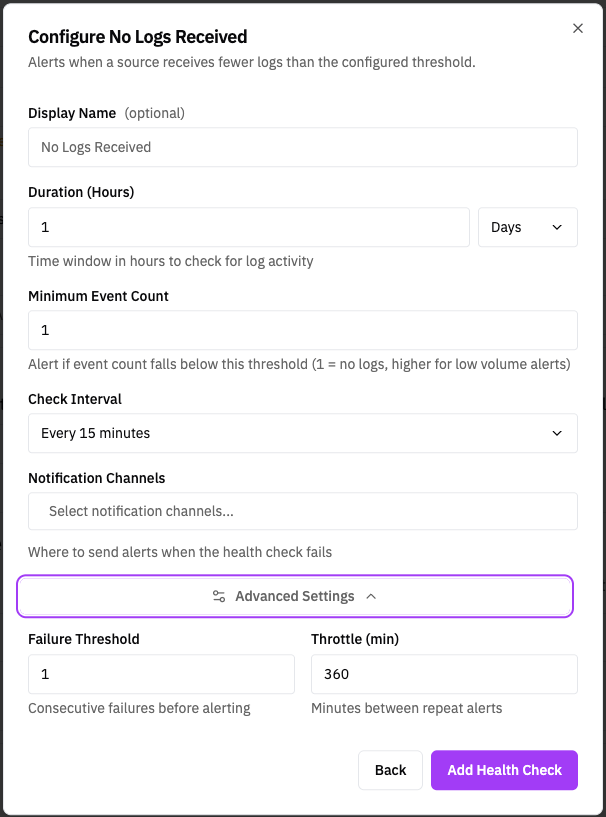
Display Name
A friendly name for your health check. This name appears in the health check list and in notifications, making it easy to identify which check triggered an alert.
Notifications
Select one or more notification channels to receive alerts when the health check fails. If no notification channels are selected, the health check will still run and track status, but no alerts will be sent.
Alerting Threshold
Every health check has a threshold value that determines when the check is considered failing. The health check evaluates a metric (such as log count) and compares it against this threshold. If the value falls below (or above, depending on the check type) the threshold, the health check is considered unhealthy.
The specific field name and meaning varies by health check type:
- Log Volume checks - Threshold for minimum expected log count within the time window
- Other health check types may have different threshold parameters
Schedule
How frequently the health check runs. The default is every 15 minutes (@15m).
Advanced Settings
The Advanced Settings section contains additional configuration options for fine-tuning health check behavior:
Failure Threshold
The number of consecutive failures required before the health check transitions from "pending" to "alerting" state and sends notifications.
- Default: 1 - Alert on the first failure
- Higher values - Reduce noise from transient issues (e.g., set to 3 to require 3 consecutive failures before alerting)
This is useful for sources with intermittent log delivery where you want to avoid false alarms from temporary gaps.
Throttle (Notification Repeat Interval)
Controls how often notifications are re-sent while a health check remains in a failing state. Specified in minutes.
- Default: 360 minutes (6 hours) - Re-send alerts every 6 hours while still failing
- 0 or empty - Send a notification on every evaluation while failing
- Higher values - Reduce notification noise for known ongoing issues
This prevents notification fatigue when a source has an extended outage.
Health Check Status
Each health check has one of three statuses:
| Status | Description |
|---|---|
| Normal | The health check is passing - logs are being received as expected |
| Pending | The health check is failing but hasn't reached the failure threshold yet |
| Alerting | The health check has failed enough consecutive times to trigger alerts |
The source's overall health status is derived from its health checks:
- Healthy - All health checks are normal
- Degraded - Some health checks are failing but not all
- Unhealthy - All health checks are failing
Managing Health Checks
Editing a Health Check
Click the edit button (pencil icon) next to a health check to modify its settings.
Silencing Notifications
If you need to temporarily stop notifications (e.g., during planned maintenance), you can silence health check notifications for a specified duration. The health check will continue to run and track status, but no notifications will be sent until the silence period expires.
Deleting a Health Check
Click the delete button (trash icon) next to a health check to remove it. This action cannot be undone.
Best Practices
- Start with a single health check - Begin with a log volume check to ensure basic connectivity
- Set appropriate failure thresholds - For sources with bursty log patterns, use a higher threshold to avoid false alarms
- Configure meaningful notifications - Route critical source alerts to high-priority channels (e.g., PagerDuty for production sources)
- Use throttling wisely - Balance between staying informed and avoiding notification fatigue
- Monitor the health check status - Regularly review the sources list to spot degraded sources before they become fully unhealthy