

incident.io
The incident.io notification channel allows you to create alerts and trigger incidents in incident.io when a detection is triggered.
How It Works
The incident.io notification channel sends alerts to incident.io's Alert Sources, which can then be configured to automatically trigger incidents based on your defined workflows:
- Alert Events API: Uses incident.io's HTTP Alert Events API to send alerts
- Deduplication: Automatically deduplicates alerts based on the execution ID
- Custom Metadata: Supports adding custom metadata fields to alerts
- Template Support: Alert title and description are customizable through notification templates
Setup Instructions
Step 1: Create an Alert Source in incident.io
- Log in to your incident.io dashboard
- Navigate to Settings → Alerts
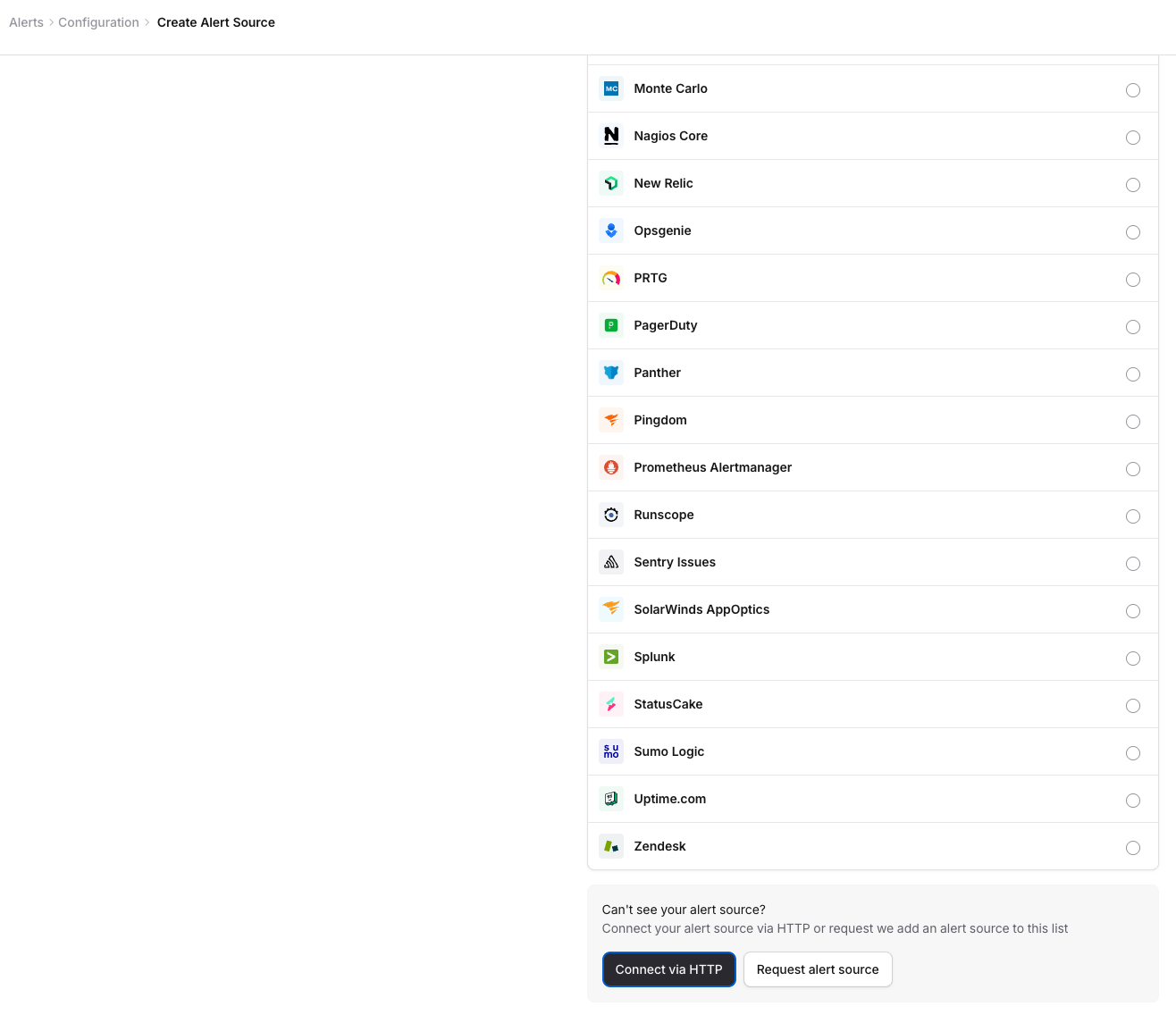
- Click Create Alert Source
- Scroll to the bottom of the list and select Connect via HTTP
- Give it a descriptive name (e.g., "RunReveal Security Alerts")
- Select Default as the type of HTTP source, and click Continue.
- You will be presented with the new source settings, a webhook URL and an Authorization header.
Step 2: Configure in RunReveal
- Go to Notification Channels
- Click "Add Notification Channel"
- Select "incident.io"
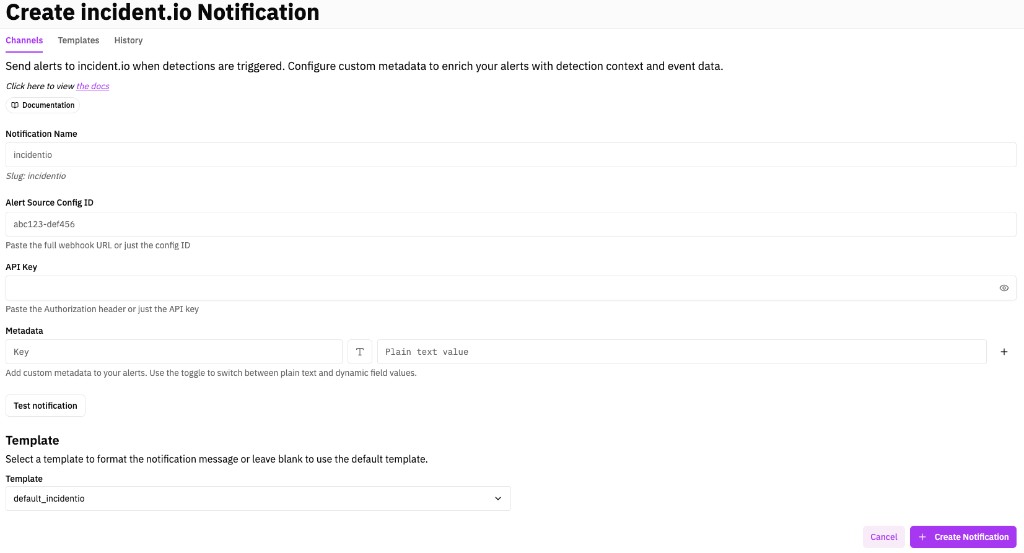
- Fill in the form:
- Display Name: incident.io Alerts (or your preferred name)
- Alert Source Config ID: Paste the alert source config ID from Step 1 (or the full webhook URL - we'll extract the ID automatically)
- Auth Header: Paste the API key in the authorization header from Step 1 (or the full Authorization header - we'll extract the key automatically)
- Metadata (optional): Add custom key-value pairs to include additional context.
- Click "Test Notification" to verify the connection
- Click "Create Notification" to save
Step 4: Add Notification Channels to Detections
Add notification channels to detections on individual notifications, within sigma rules, or mass subscribe via the detection query library tab of the detections page in RunReveal.
Custom Metadata
You can add custom metadata to your alerts to provide additional context for incident.io workflows. Metadata supports both plain text values and dynamic fields using handlebars syntax.
Plain Text Values
Simple static values that remain the same for all alerts:
Dynamic Fields
Use handlebars syntax to include detection-specific information, we provide a dropdown with the common fields a detection may utilize:
In the RunReveal UI, you can toggle between plain text mode and field selector mode using the icon next to each metadata value field.
Alert Format
Alerts sent to incident.io include:
- Title: Customizable via notification templates (default: "RunReveal Detection Alert: [Detection Name]")
- Description: Detection details in markdown format
- Source URL: Direct link to the RunReveal alert
- Status: Always set to "firing" (resolved status not currently supported)
- Deduplication Key: Automatically set to the detection execution ID to prevent duplicate alerts
- Custom Metadata: Any key-value pairs you configured
You can create custom alert templates by going to Notification Templates.
Best Practices
- Use descriptive metadata keys: Make it easy to filter and route alerts in incident.io
- Include relevant context: Add metadata like severity, detection type, or affected resources
- Test your configuration: Send test alerts to verify routing rules work as expected
- Monitor alert history: Use RunReveal's notification history to track sent alerts
- Regularly rotate API keys: Follow security best practices for credential management
- Configure deduplication: incident.io will automatically deduplicate alerts with the same deduplication key
Troubleshooting
Alert Not Appearing in incident.io
- Verify your Alert Source Config ID is correct
- Check that your API key has the necessary permissions
- Review RunReveal's notification history for error messages
- Ensure your incident.io alert source is active and not paused
Metadata Not Displaying
- Verify handlebars syntax is correct:
{{field.name}} - Check that the field exists for your detection type
- Ensure metadata keys don't contain special characters
Duplicate Alerts
- incident.io deduplicates alerts based on the deduplication key
- By default, RunReveal uses the detection execution ID as the deduplication key
- If you need different deduplication behavior, contact RunReveal support
Related Documentation
- Notification Templates - Customize alert content
- Getting Started with Notifications - Basic notification setup
- Notification History API - Track notification delivery
- incident.io API Documentation - Official incident.io API docs