

Microsoft 365
Collect Microsoft 365 audit and activity logs from the Office 365 Management Activity API, including events from Exchange, SharePoint, OneDrive, Azure Active Directory, and more.
RunReveal polls the Microsoft 365 Management Activity API every 5 minutes to retrieve your organization's audit logs. Logs are available in workload-specific views for easier querying.
Prerequisites
Before connecting Microsoft 365 to RunReveal, you need:
- Access to the Microsoft Entra admin center — or the Azure Government portal for GCC High / DoD tenants — with permission to register applications and grant admin consent.
- Audit (Standard) logging enabled for your tenant in the Microsoft Purview compliance portal.
- Knowledge of which Microsoft cloud your tenant runs in (Commercial, GCC, GCC High, or DoD). This determines the API and login endpoints you configure in Infrastructure.
Access
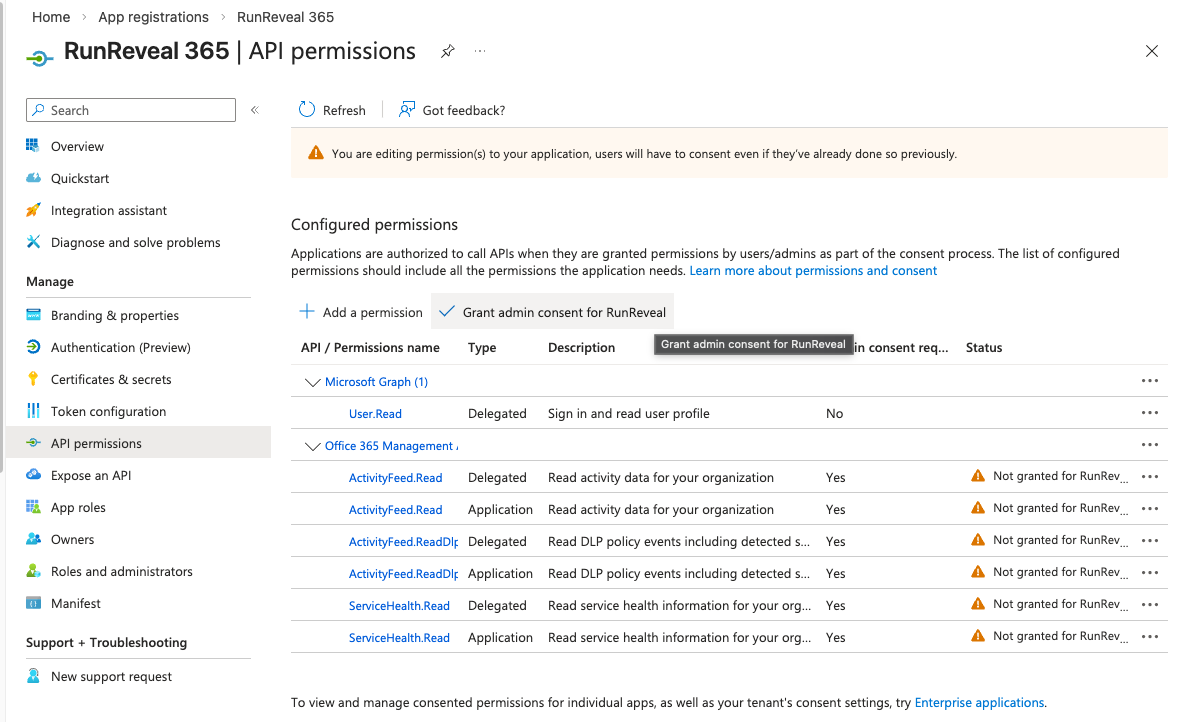
RunReveal authenticates as an Azure AD application using the client credentials (app-only) flow. Register an application and grant it the following Office 365 Management APIs permissions. Add both the Delegated and Application variants so admin consent can be granted cleanly.
| Permission | Type | Purpose |
|---|---|---|
ActivityFeed.Read | Application + Delegated | Read audit activity feeds (Entra ID, Exchange, SharePoint, General) |
ActivityFeed.ReadDlp | Application + Delegated | Read Data Loss Prevention (DLP) events |
ServiceHealth.Read | Application + Delegated | Read Microsoft 365 service health events |
An administrator must click Grant admin consent after adding these permissions for them to take effect.
Infrastructure
RunReveal defaults to the commercial Microsoft 365 endpoints. If your tenant runs in a US Government or sovereign cloud, override the Management API Base URL and Login Base URL when you create the source so RunReveal authenticates and polls against the correct endpoints.
| Cloud | Management API Base URL | Login Base URL | App registration portal |
|---|---|---|---|
| Commercial (default) | https://manage.office.com/api/v1.0 | https://login.microsoftonline.com | entra.microsoft.com |
| GCC | https://manage-gcc.office.com/api/v1.0 | https://login.microsoftonline.com | entra.microsoft.com |
| GCC High | https://manage.office365.us/api/v1.0 | https://login.microsoftonline.us | portal.azure.us |
| DoD | https://manage.protection.apps.mil/api/v1.0 | https://login.microsoftonline.us | portal.azure.us |
Leave both URL fields blank for commercial tenants. When you set a .us Management API Base URL, RunReveal automatically derives the matching OAuth scope (for example https://manage.office365.us/.default) and login endpoint, so government tenants resolve correctly.
Setup
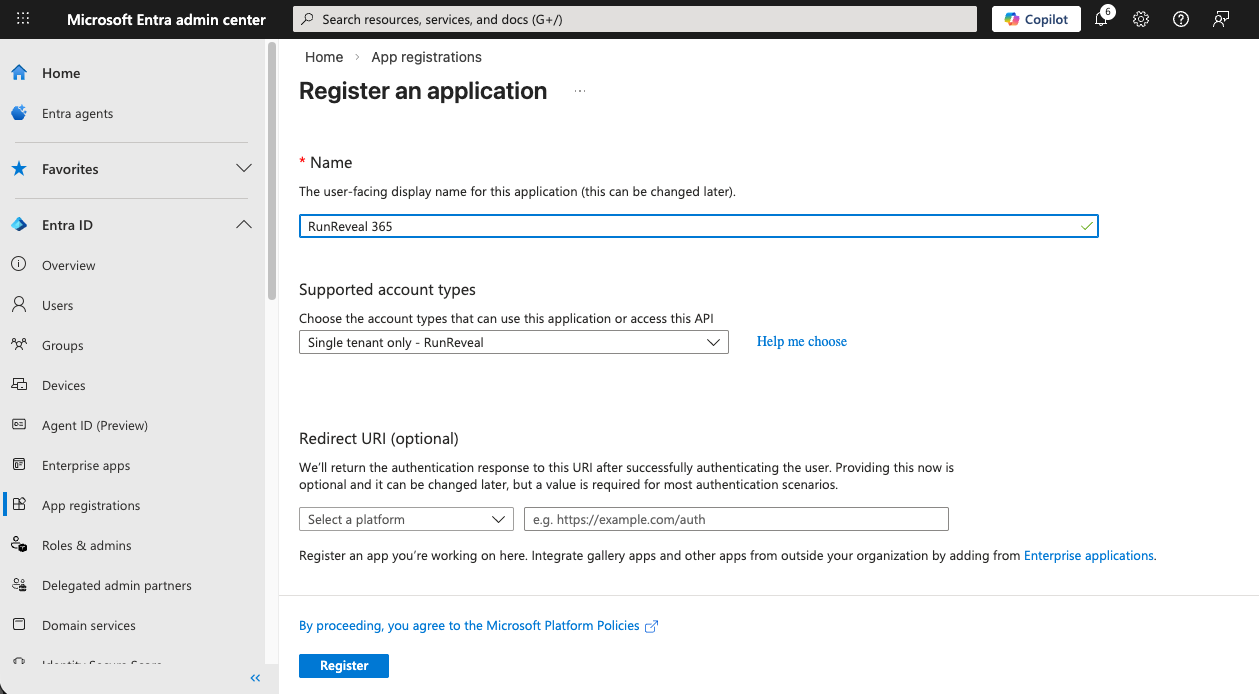
Step 1: Register an Application
- Sign in to the Microsoft Entra admin center — or the Azure Government portal for GCC High / DoD — and navigate to Entra ID → App registrations.
- Click New registration.
- Enter a name for the application (e.g.,
RunReveal 365). - Under Supported account types, select Accounts in this organizational directory only.
- Click Register.
Step 2: Create a Client Secret
- In your new app registration, click Certificates & secrets in the left sidebar.
- Click New client secret.
- Enter a description (e.g.,
RunReveal integration) and set an expiration period. - Click Add.
- Copy the secret Value immediately — it is hidden after you navigate away from this page. This is your Client Secret.
Step 3: Add API Permissions
- In the left sidebar, click API permissions → Add a permission.
- Select Office 365 Management APIs and add the Delegated and Application permissions listed in Access.
- Click Grant admin consent to approve the permissions for your organization.
Step 4: Copy Your Application and Tenant IDs
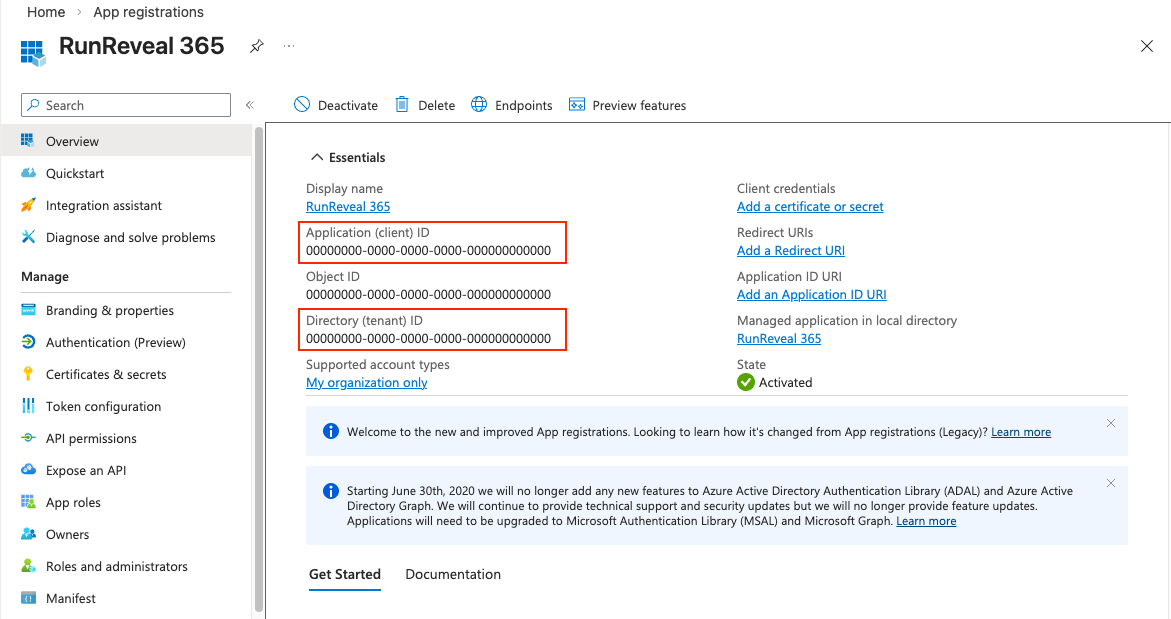
- In the left sidebar, click Overview.
- Copy the Application (client) ID — this is your Client ID.
- Copy the Directory (tenant) ID — this is your Tenant ID.
Step 5: Connect to RunReveal
- In RunReveal, navigate to Sources → Add Source.
- Search for and select Microsoft 365.
- Fill in the following fields:
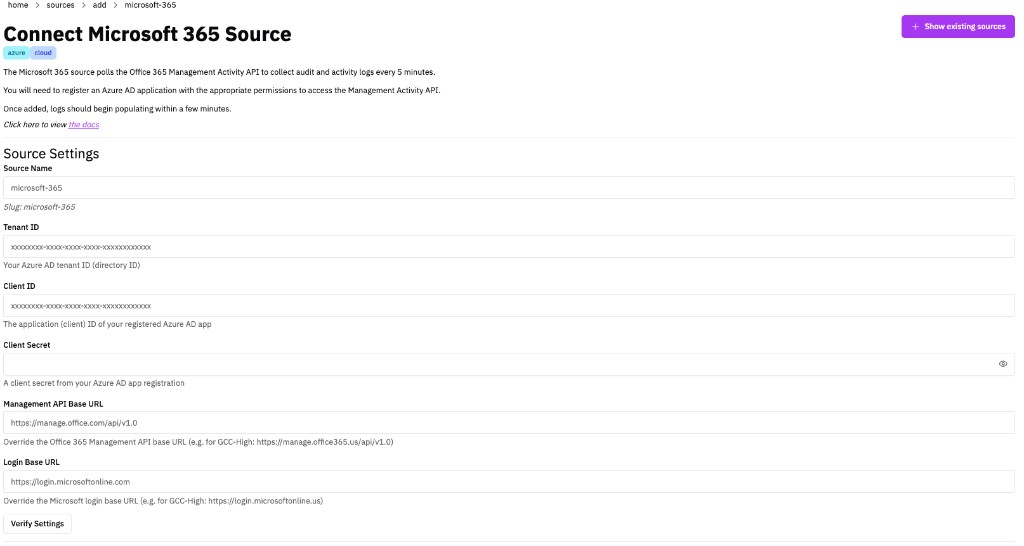
| Field | Description |
|---|---|
| Source Name | A descriptive name for this source |
| Tenant ID | Your Azure AD Directory (tenant) ID |
| Client ID | Your Azure AD Application (client) ID |
| Client Secret | The client secret value you copied in Step 2 |
| Management API Base URL | (Government / sovereign clouds only) The Management API endpoint from Infrastructure, e.g. https://manage.office365.us/api/v1.0 for GCC High |
| Login Base URL | (Government / sovereign clouds only) The login endpoint from Infrastructure, e.g. https://login.microsoftonline.us for GCC High |
- Click Save.
RunReveal will automatically subscribe to all available Microsoft 365 activity feeds for your tenant. Logs should begin appearing within a few minutes.
After the first connection, it can take up to 12 hours for Microsoft to make logs available via the API for the first time.
Verify It's Working
Once added, the source logs should begin flowing within a few minutes.
You can validate we are receiving your logs by running the following SQL query:
Use dot notation on the rawJSON column to access any Microsoft 365-specific field without needing to know the exact JSONExtractString path:
Schema
The following columns are exposed for this source. RunReveal applies schema normalization across all sources, ensuring uniform field names and data types for cross-source queries and reusable detection logic.
Table: microsoft365_logs (37 columns)
microsoft365_logs (37 columns)| Column | Type |
|---|---|
workspaceID | String |
sourceID | String |
sourceType | LowCardinality(String) |
sourceTTL | UInt32 |
receivedAt | DateTime |
id | String |
eventTime | DateTime |
eventName | String |
eventID | String |
srcIP | String |
srcASCountryCode | String |
srcASNumber | UInt32 |
srcASOrganization | String |
srcCity | String |
srcConnectionType | String |
srcISP | String |
srcLatitude | Float64 |
srcLongitude | Float64 |
srcUserType | String |
| Column | Type |
|---|---|
dstIP | String |
dstASCountryCode | String |
dstASNumber | UInt32 |
dstASOrganization | String |
dstCity | String |
dstConnectionType | String |
dstISP | String |
dstLatitude | Float64 |
dstLongitude | Float64 |
dstUserType | String |
actor | Map(String, String) |
tags | Map(String, String) |
resources | Array(String) |
serviceName | String |
enrichments | Array(Tuple(data Map(String, String), name String, provider String, type String, value String)) |
readOnly | Bool |
rawLog | String |
rawJSON | Unknown |
Helpful Links
- Get started with Office 365 Management APIs — Microsoft's overview of registering an app and consenting to the Management APIs
- Office 365 Management Activity API reference — Reference for the endpoint RunReveal polls
- Enable or disable auditing (Microsoft Purview) — How to turn on audit logging for your tenant
- US Government cloud endpoint mappings — Microsoft's audience/authority table for GCC, GCC High, and DoD
- Microsoft 365 GCC High and DoD service descriptions — Differences for US Government sovereign clouds