

Custom Views
Custom Views allow you to create virtual tables that extract specific fields from your log data using JSON path expressions. This feature enables you to organize and analyze your log data with custom columns tailored to your specific use cases, without modifying the underlying data structure.
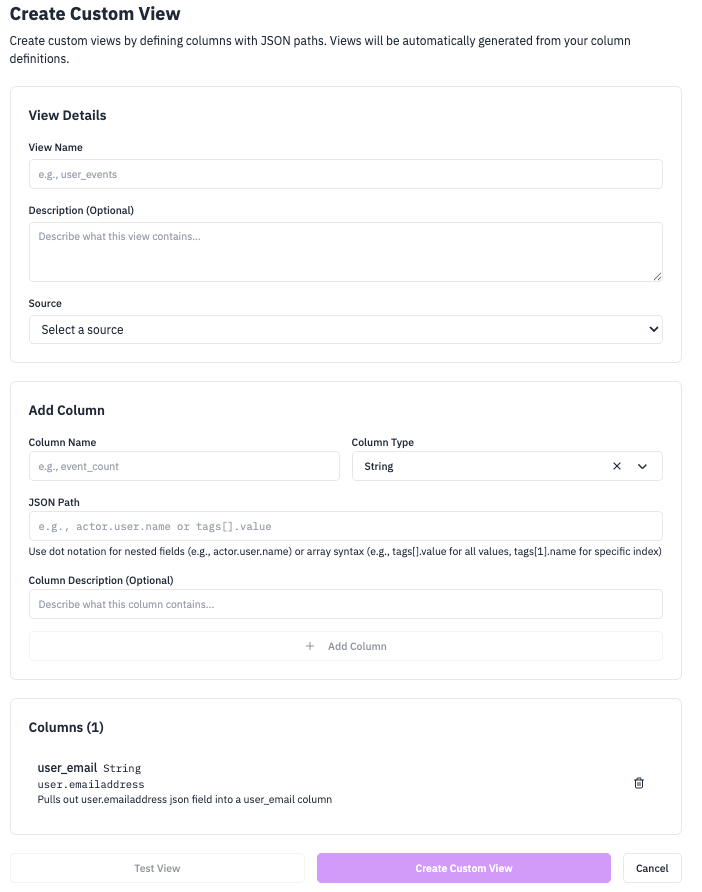
Getting Started: Navigate to Settings → Custom Views to create your first custom view, or use the CLI and API for programmatic access.
Accessing Your Custom View: Once created, your custom view table will be available in the Search Explorer page where you can query it directly using SQL.
Key Features
- Virtual Tables: Create queryable views without data transformation
- JSON Path Extraction: Extract nested fields from your raw logs
- Flexible Source Filtering: Scope views by source type, a specific source, or both
- Real-time Analysis: Query-time extraction for immediate insights
- Flexible Schema: Add custom columns for any JSON field in your logs
- Federated Search: Query external S3-compatible buckets directly, without ingesting the data first (see Federated Search)
Architecture
Creating Custom Views
Via Web UI
1) Navigate to Custom Views
Go to Settings → Custom Views and click "Create Custom View".
2) Configure Basic Information
Fill in the basic information:
- Name: Descriptive name for your view
- Description: Optional description of the view's purpose
- Source Type: The type of log events to include (e.g.
syslog,okta,cloudtrail). This is auto-populated when you select a source, but can also be set independently. The dropdown shows source types observed in your logs over the last 24 hours, and you can type a custom value. - Source (optional): Select a specific source to filter logs from, or choose "All sources" to include logs from all sources of the selected type. This is useful when a source type spans multiple source configurations (e.g. multiple reveald agents producing
syslogevents).
Source Type vs Source: Some sources (like reveald) produce events with different source types (e.g. syslog, journald, file). By setting the source type independently, you can create views that match the actual event types rather than the source configuration type. When you select a specific source, the source type is auto-populated but can be changed for generic sources.
3) Add Custom Columns
Add custom columns with:
- Column Name: Name for the extracted field
- Type: ClickHouse data type (String, Int64, Bool, etc.)
- SQL Expression: JSON path to extract the field
- Description: Optional description of the column
4) Test and Save
Test your view with sample data, then save your configuration.
Column Configuration
Supported Data Types
| Type | Description | Example |
|---|---|---|
String | Text data | "[email protected]" |
Int8/16/32/64 | Signed integers | 12345 |
UInt8/16/32/64 | Unsigned integers | 4294967295 |
Float32/64 | Floating point numbers | 3.14159 |
Bool | Boolean value | true |
DateTime/DateTime64 | Date and time | 2025-01-15 10:30:00 |
Date/Date32 | Date only | 2025-01-15 |
Array(String) | Array of strings | ["tag1", "tag2"] |
Nullable(String) | Nullable string | null or "value" |
LowCardinality(String) | Memory-optimized string | "frequent_value" |
JSON Path Expressions
Custom views support simple JSON path expressions to extract nested fields:
Basic Syntax
Examples
Valid JSON Paths:
user.profile.email→"[email protected]"tags[0]→"security"metadata.source_ip→"192.168.1.100"
Limitations
- Simple Paths: Direct field access and array indexing only
- No Complex Logic: Cannot use conditional statements in path expressions
- ClickHouse Functions: Can use ClickHouse functions in SQL expressions
- Path Length: Maximum 256 characters
Example: Application Security Custom View
Use Case
Extract important security fields from application logs for analysis and monitoring.
Sample Raw Log
Configuration
Basic Information:
- Name:
app_security_analysis - Description:
Application security events analysis - Source Type:
custom-source(or your application's source type) - Source: Your application source, or All sources to include all sources of this type
Custom Columns:
Querying Custom Views
Querying Custom View Columns: You do not have to target the rawLog.jsonfield name in your query. You can just target the jsonfield name that you created in your custom view. For example, if you created a column named user_email that extracts user.email from the raw log, you can query it directly as user_email without referencing rawLog or logJson.
View Naming Convention
The workspace name prefix is automatically added to your custom view name.
Example: If your workspace is named workspace and you create a view named app_security_analysis, it will be accessible as:
The full view name format is: {workspace_name}_{your_view_name}
Basic Queries
Security Analysis Queries
Combining with Transforms
Best Practice: Hybrid Approach
Use transforms for standard field mapping and custom views for source-specific analysis:
Transform (Data Normalization)
Benefits
- Standard Fields: Work with existing RunReveal detections
- Custom Fields: Enable advanced source-specific analysis
- Flexibility: Query either standard table or custom view as needed
Using Custom Views in Detections
Custom views can be used in SQL detections but not in Sigma streaming detections. When creating SQL detections, you can query your custom view directly.
SQL Detection Example
Here's an example SQL detection that uses a custom view:
Note: Replace workspace_app_security_analysis with your actual view name (workspace prefix + view name). See View Naming Convention for details.
Sigma Detection (Not Supported)
Due to the nature of Sigma (Streaming Detections) Custom views cannot be used in Sigma detections.
Federated Search
By default, a custom view reads from your ingested data in runreveal.logs. A federated view instead reads directly from an external S3-compatible bucket at query time, so you can search data that was never ingested into RunReveal.
When creating a view, choose External S3-compatible storage in the Source dropdown to switch into federated mode and configure the bucket, format, and credentials.
| Internal View | Federated View | |
|---|---|---|
| Reads from | runreveal.logs (ingested data) | Your external S3-compatible bucket |
| Ingestion | Requires a source + pipeline | None — data stays in your bucket |
| Best for | Hot, frequently queried data | Cold archives, large/occasional datasets, external data |
Federated views support AWS S3, Cloudflare R2, Google Cloud Storage (HMAC), MinIO, and other S3-compatible providers, and can read NDJSON, CSV, TSV, Parquet, and ORC files. Credentials are encrypted at rest and never returned in API responses.
Federated Search is available on Pro and Enterprise plans and is not available for BYODB workspaces. For setup details, providers, authentication, partitioning, and querying, see the dedicated Federated Search guide.
Troubleshooting
Common Issues
"Invalid JSON path" Error
- Cause: JSON path syntax is incorrect
- Solution: Use simple dot notation:
field.subfield.array[0]
"No rows in result set"
- Cause: No logs match the source filter or time range
- Solution: Check source is active and has recent logs
"Column not found" Error
- Cause: Column name doesn't exist in the view
- Solution: Verify column names match the custom view definition
Next Steps
Now that you understand custom views, explore these related features:
- Federated Search: Query external S3-compatible buckets directly, without ingesting the data
- Transforms: For data normalization and field mapping
- Detections: For alerting on custom view data
- Writing Detections: Learn how to write detection rules
- Dashboards: For visualizing your custom view data