

Federated Search
Federated Search lets you query data that lives in an external S3-compatible bucket directly, without ingesting it into RunReveal first. It is a kind of Custom View — a federated view — that reads from your bucket via ClickHouse's s3() table function at query time instead of from the runreveal.logs table.
Use it to search cold archives, query large datasets you already store in object storage, or explore public datasets, all from the same Search Explorer and SQL detections you already use.
Getting Started: Navigate to Settings → Custom Views, click Create Custom View, and select External S3-compatible storage as the source.
Internal vs. Federated Views
| Internal Custom View | Federated View | |
|---|---|---|
| Reads from | runreveal.logs (ingested data) | Your external S3-compatible bucket |
| Ingestion | Requires a source + ingestion pipeline | None — data stays in your bucket |
| Storage cost | Stored in the workspace database | Stays in your object storage |
| Best for | Hot, frequently queried data | Cold archives, large/occasional datasets, external data |
| Query latency | Fast (local table) | Depends on bucket size, format, and partitioning |
How It Works
External bucket → Federated view → Search and detections
- Files stay in your bucket — NDJSON, CSV, TSV, Parquet, or ORC, with optional compression and path partitioning.
- RunReveal builds a federated view — ClickHouse's
s3()reads matching objects at query time. NDJSON views use JSON path columns; structured formats use the file's native schema. - You query the view — Use Search Explorer or SQL detections against the workspace-prefixed table name. No data is copied into RunReveal.
| Component | Role |
|---|---|
| S3-compatible bucket | Source of truth for your data |
| Federated view | Virtual table over s3() with your column definitions |
| Search Explorer and SQL detections | Query surfaces, same as internal custom views |
When you query a federated view, ClickHouse reads the matching objects from your bucket on demand, applies your column definitions, and returns rows — nothing is copied into RunReveal. Credentials are encrypted at rest and are never returned in API responses.
Availability
Federated Search is available on Pro and Enterprise plans. Like all custom views, it is not available for workspaces using Bring Your Own Database (BYODB). Contact RunReveal if you don't see the option.
Supported Providers
| Provider | Notes |
|---|---|
| AWS S3 | Virtual-hosted-style addressing; region required |
| Cloudflare R2 | Requires an endpoint URL (e.g. https://{account}.r2.cloudflarestorage.com) |
| Google Cloud Storage (HMAC) | Requires an endpoint URL and HMAC access keys |
| MinIO | Requires an endpoint URL; http is allowed for local development |
| Other S3-compatible | Any provider exposing an S3-compatible API; requires an endpoint URL |
Supported Formats
| Format | How columns are defined |
|---|---|
| NDJSON (one JSON object per line) | You define columns with JSON path expressions. The view exposes rawLog plus your extracted columns. |
CSV with header row (CSVWithNames) | Schema is read from the file. Columns are auto-populated on save. |
TSV with header row (TSVWithNames) | Schema is read from the file. Columns are auto-populated on save. |
| Parquet | Native schema is read from the file. Columns are auto-populated on save. |
| ORC | Native schema is read from the file. Columns are auto-populated on save. |
JSON vs. structured formats: For NDJSON, you declare each column with a JSON path and a type (just like an internal custom view). For structured formats (CSV/TSV/Parquet/ORC), RunReveal runs a DESCRIBE against a sample of your files and fills the column list in for you using the file's own schema and native types.
Supported compression options: auto-detect (default), none, gzip, zstd, lz4, brotli, and xz.
Creating a Federated View
Start a new Custom View
Go to Settings → Custom Views and click Create Custom View.
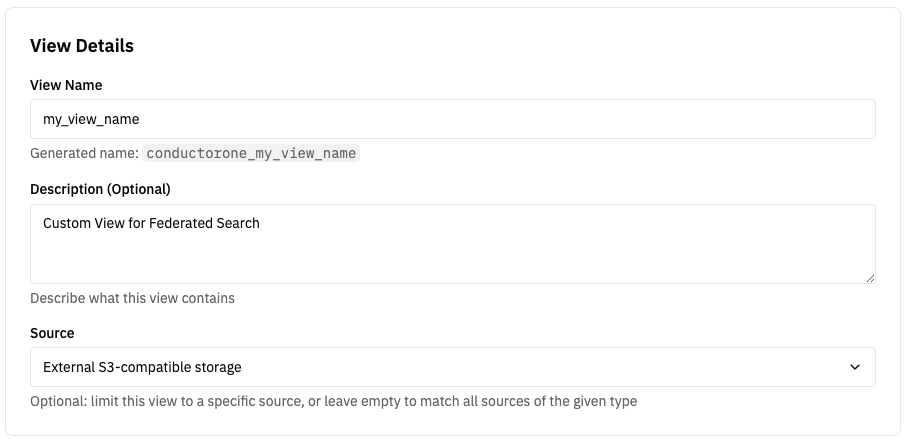
Select external storage
In the Source dropdown, choose External S3-compatible storage. This reveals the bucket configuration section.
Configure the connection
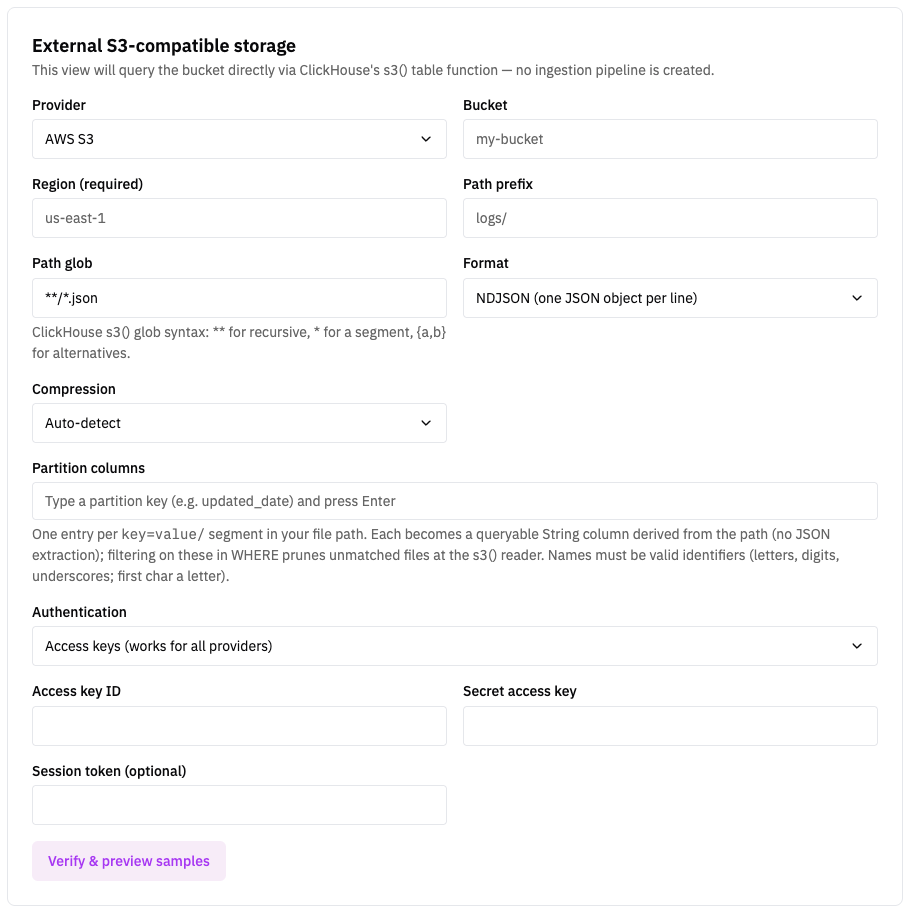
Fill in the provider, bucket, and path settings (see Connection Settings below), then choose your authentication mode.
Verify and preview
Use the preview/sample action to pull a handful of rows from your bucket. This confirms your connection works and the path matches files.
- NDJSON: sample rows are used to suggest column mappings.
- Structured formats: the file schema is read and your columns are populated automatically.
Add or adjust columns
For NDJSON, add columns using JSON paths and pick a type for each. For structured formats, review the auto-detected columns. See Column Configuration for supported types and JSON path syntax.
Save
Save the view. It becomes queryable in the Search Explorer under its workspace-prefixed name.
Connection Settings
| Setting | Description |
|---|---|
| Provider | The S3-compatible provider hosting your data. |
| Bucket | The bucket name (required). |
| Endpoint URL | Required for R2, GCS, MinIO, and Other. Leave blank for AWS S3. Must use https (http is only permitted for MinIO). |
| Region | Required for AWS S3 (e.g. us-east-1). |
| Prefix | Optional key prefix to scope the search (e.g. logs/2024/). |
| Path glob | Optional glob to match files within the prefix (e.g. **/*.json). |
| Format | One of NDJSON, CSV, TSV, Parquet, or ORC. |
| Compression | Auto-detect by default, or set explicitly. |
Authentication
| Mode | Providers | Required credentials |
|---|---|---|
| Access keys | All providers | Access key ID + secret access key (optional session token). For GCS, use HMAC keys. |
| IAM Role ARN | AWS S3 only | A role ARN that ClickHouse Cloud assumes (recommended). Requires a trust relationship — see IAM Role Assumption. Requires ClickHouse 25.8+. |
| Anonymous / public bucket (NOSIGN) | All providers | None — for public buckets that allow unauthenticated reads (e.g. open data registries). |
Credentials are encrypted with your workspace key before they are stored, and they are never included in API responses.
Prefer IAM Role ARN for AWS S3. Role assumption avoids storing long-lived access keys: ClickHouse Cloud assumes a role you control to obtain temporary credentials, and you can revoke access at any time by editing the role. See IAM Role Assumption below.
IAM Role Assumption (AWS S3)
For AWS S3 buckets we recommend authenticating with an IAM Role ARN instead of access keys. RunReveal runs Federated Search queries on ClickHouse Cloud, which uses role chaining to assume a role you create in your AWS account. You grant that role read access to your bucket and add a trust relationship that allows ClickHouse Cloud's service principal to assume it. No long-lived credentials ever leave your account.
Create an IAM role with a trust policy
In your AWS account, create a new IAM role with the following trust policy. This authorizes RunReveal's ClickHouse Cloud service principal to assume the role:
The principal above is the service role used by RunReveal's production ClickHouse Cloud instance (account 426924874929 is ClickHouse Cloud's AWS account). Use it for workspaces on app.runreveal.com. If you run RunReveal in a dedicated or self-hosted environment, contact RunReveal for the principal that applies to your deployment.
Attach a permissions policy for your bucket
Attach a policy to the role that grants read access to the bucket (and prefix) you want to query. Replace YOUR_BUCKET with your bucket name:
To scope access to a single prefix, add a Condition with s3:prefix on the ListBucket statement and narrow the GetObject resource to arn:aws:s3:::YOUR_BUCKET/logs/*.
Use the role ARN in your federated view
Choose IAM Role ARN as the authentication mode when creating or editing the federated view, and paste the ARN of the role you just created (for example arn:aws:iam::123456789012:role/runreveal-federated-read). RunReveal stores only this ARN — no secret keys — and ClickHouse Cloud assumes the role each time it reads your bucket.
IAM Role ARN authentication requires ClickHouse 25.8+, which is always available on ClickHouse Cloud. It is supported for AWS S3 only — R2, GCS, and other providers must use access keys.
Partitioning
If your bucket is organized into key=value/ path segments (for example date=2024-01-01/hour=12/), you can prune the files ClickHouse scans so queries only touch the objects they need. There are two mutually exclusive approaches:
Hive partitioning
Enable Use Hive partitioning when your paths follow a key=value/ layout. ClickHouse auto-discovers the partition columns from the file path, exposes them with native types, and prunes unmatched files when you filter on them.
Example layout:
Filtering WHERE date = '2024-01-01' skips downloading files in other partitions.
Hive partitioning and manual partition columns are mutually exclusive. Enabling Hive partitioning auto-discovers the columns from the path; setting them manually as well produces duplicate columns and is rejected at save time.
Querying a Federated View
Federated views follow the same naming convention as internal views: {workspace_name}_{your_view_name}. Query them like any other table.
For partitioned data, filter on a partition column to reduce the number of files scanned:
You can also use federated views in SQL detections, just like internal custom views. See Using Custom Views in Detections.
Use Cases
- Cold archive search: keep older logs in cheap object storage and query them on demand without re-ingesting.
- Bring your own data lake: query data you already export to S3/R2/GCS from other systems.
- Public datasets: point an anonymous (NOSIGN) view at a public bucket to explore open data.
- Cost control: avoid storing rarely queried data in the workspace database while keeping it searchable.
Limitations
- Available on Pro and Enterprise plans only. Like all custom views, it is not available for BYODB workspaces.
- Query performance depends on bucket size, file format, compression, and partitioning. Large unpartitioned scans can be slow and costly — prefer columnar formats (Parquet/ORC) and partition pruning for big datasets.
- Endpoints must use
https(except MinIO, which may usehttpfor local development). - Federated views cannot be used in Sigma streaming detections (the same limitation as internal custom views).
Next Steps
- Custom Views: column configuration, JSON paths, and querying basics.
- Search: explore your views in the Search Explorer.
- Detections: alert on federated view data with SQL detections.
- Destinations: route ingested events to object storage you can later search with federated views.