

AI SOC Guide
RunReveal can run the first pass of your security operations for you. When a detection fires, RunReveal opens an investigation, an AI triage agent works the alert, and the case ends up either closed as a false positive or waiting for an analyst with the evidence already gathered.
Only enable AI Triage on reviewed, stable detections
Every alert from a detection with AI Triage on opens an investigation and queues an agent task. A new or noisy detection can open hundreds of investigations at once, so only turn on AI Triage for detections you have reviewed and that fire at a steady, expected rate.
If something goes wrong, go to Agents > Queue filtered to pending tasks (/dash/agents/queue?status=pending) and choose Cancel All Pending, or select individual tasks and cancel them. Tasks that are already running are not affected. Cancelling requires permission to edit agents.
This guide covers how that loop works, which investigation features the agent uses, the 11 steps the default triage agent follows, and how to turn it on. For the full reference on cases and artifacts, see Investigations.
How the loop works
| Stage | What happens |
|---|---|
| Alert | A detection returns a result. Its name and severity come from the detection. |
| Case opens | RunReveal creates an investigation with status open, tags auto-created and alert, and the alert attached as the first artifact. |
| Agent triage | The status changes to agent-triage and the agent follows the 11 default steps. |
| Classify | The agent sets true_positive, false_positive, or inconclusive, and writes a one-sentence summary. |
| Hand off | A real concern stays investigating for a person. A clear false positive is closed. |
The default agent triages only the alert that opened the investigation. It does not search for other alerts or widen the case. See Using past alerts if you need that.
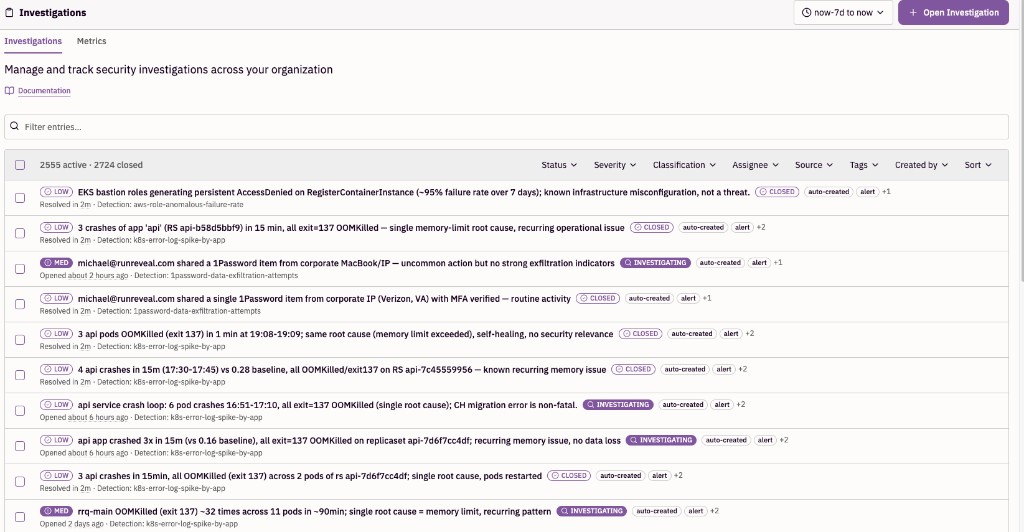
Investigation features the AI SOC uses
Case fields
Every field below can be set by the agent or by an analyst.
| Field | Values and behavior |
|---|---|
| Status | open, agent-triage, investigating, closed. agent-triage means the agent is working the case. |
| Severity | low, medium, high, critical. Starts from the detection. The agent can raise or lower it. |
| Classification | true_positive, false_positive, or inconclusive. Set during triage or when a person closes the case. |
| Summary | One sentence, under 150 characters, written by the agent so the investigations list is readable at a glance. |
| Assignee | The person who owns the case once it needs review. |
| Tags | auto-created and alert on automated cases, grouped when many alerts share one case, plus your own labels. |
| Description | Free-form context at the top of the case. The agent reads it when it loads the investigation. |
| Resolution | Recorded when the case is closed, on the case and as a resolution artifact. |
Artifacts
The timeline is the audit trail for the case. It holds 11 artifact types.
| Type | What it holds |
|---|---|
| Note | Markdown analysis. The agent writes its findings here. |
| Indicators | Structured IOCs such as ip, user, domain, hash, file, process, and url. |
| Query | A link to a query from Explore. |
| Query Result | The rows that mattered, with the fields you kept. |
| Alert | The alert that opened the case, or one you add later. |
| Chat | An AI Chat conversation that helped the analysis. |
| Chat Message | A single message from a chat. |
| Link | An external URL, such as a ticket or a vendor console. |
| Graph | A visual from the graph view. |
| Investigation Update | System-generated record of every status, severity, classification, and summary change. Cannot be deleted. |
| Resolution | System-generated when the case closes. Cannot be deleted. |
Analysts add artifacts with Add to Investigation from Explore, alerts, AI Chat, and graphs. On the timeline you can star artifacts, filter by type, and search comments.
Indicators and IOC lookup
An indicator of compromise (IOC) is a concrete value tied to suspicious activity that you want to find again later, such as an IP address, username, domain, or file hash.
- Indicators are searchable across every investigation in the workspace. The type matches exactly and the value matches partially, case-insensitive.
- Results can be filtered by the earlier case's classification, so you can see whether the same value was a true positive or a false positive before.
- The triage agent runs this lookup before it writes its note. Note text is not searched, so anything you want found later belongs in an indicator.
- The default agent adds indicators only when it classifies a case
true_positive, and only for values an analyst would pivot on.
How context reaches the agent
| What you wrote | How the triage agent sees it |
|---|---|
| Detection notes on the detection | Added to the triage prompt before the agent starts |
| Description on the investigation | Returned when the agent loads the investigation |
| Timeline notes and artifact comments | Returned when the agent loads the investigation |
| Custom agent prompt | Added after the 11 default steps |
Add context before triage finishes if you want the first pass to use it. Notes added after a case is closed do not change that classification.
Time to respond
Each investigation shows four timing metrics in the sidebar:
| Metric | Measures |
|---|---|
| Detect | When the activity happened until the alert fired |
| Respond | When the case opened until the first response, such as assignment or active triage |
| Investigate | When triage started until the case closed |
| Resolve | When the case opened until it closed |
Alert grouping
By default each alert gets its own investigation and its own agent run. For high-volume detections, Group alerts into one investigation opens one case per detection run instead, attaches every alert, and runs one triage pass that returns one classification for the set. Runs with more than 200 alerts are split into batches of up to 200, and no alerts are dropped.
Alert grouping is in beta and requires the grouped_investigations workspace feature flag. Contact RunReveal support to enable it.
The 11 default triage steps
When AI Triage is on and you use the Default Triage Agent, the agent follows these steps for each investigation.
Mark the case in progress
Set the status to agent-triage, so the investigations list shows the agent is working.
Load the investigation
Retrieve the investigation. This returns the alert artifact, the description, and any notes already on the timeline.
Read the attached alert
Analyze the alert data that is already on the case. The agent stays on this one alert.
Query for context, if needed
Query logs for the user, IP, or file in the alert. The agent checks which sources are enabled first, then queries only those tables.
Check prior IOCs
Look up the most suspicious entities in earlier investigations' indicators. A prior true positive strengthens the case. A prior false positive suggests this alert is benign too.
Write the analysis
Add a note to the timeline, including anything relevant from the IOC lookup.
Adjust severity
Raise or lower the severity if the detection's default does not match what the logs show.
Classify
Set the classification to true_positive, false_positive, or inconclusive.
Write a one-sentence summary
Under 150 characters, for example: Brute force login attempts from 203.0.113.45 against [email protected].
Add indicators for true positives only
Add the IOCs an analyst would actually search on later. Routine internal IPs, generic service accounts, and standard user agents are left out unless they are why the alert fired. No indicators are added for false_positive or inconclusive.
Hand off or close
If the alert needs human review or is a real concern, set the status to investigating. If it is clearly benign, close the investigation.
Example: failed login attempts
This example follows one alert from a Multiple Failed Login Attempts detection with AI Triage on, the Default Triage Agent selected, and grouping off.
- Actor:
[email protected] - Source IP:
203.0.113.45 - What fired: 15 failed logins in the detection window
- Severity:
high, from the detection
RunReveal opens Multiple Failed Login Attempts (a1b2c3d4) with the alert attached, and the agent works through the steps:
| Steps | What the agent does |
|---|---|
| 1–2 | Sets the status to agent-triage and loads the investigation with the alert attached. |
| 3–4 | Reads the 15 failures, then queries the last 24 hours of logins for [email protected]. No successful login from that IP follows. |
| 5 | IOC lookup on 203.0.113.45 finds an earlier true positive: the same IP against a different account. |
| 6–7 | Writes a note covering the failures, the absence of a later success, and the prior case. Severity stays high. |
| 8–9 | Classifies true_positive. Summary: 15 failed logins for [email protected] from 203.0.113.45. |
| 10–11 | Adds indicators for the IP and the user, and sets the status to investigating. |
The analyst opens a case that already has the note, the query, the prior-case context, and two indicators. They block the IP, reset the password, and close the case with a resolution.
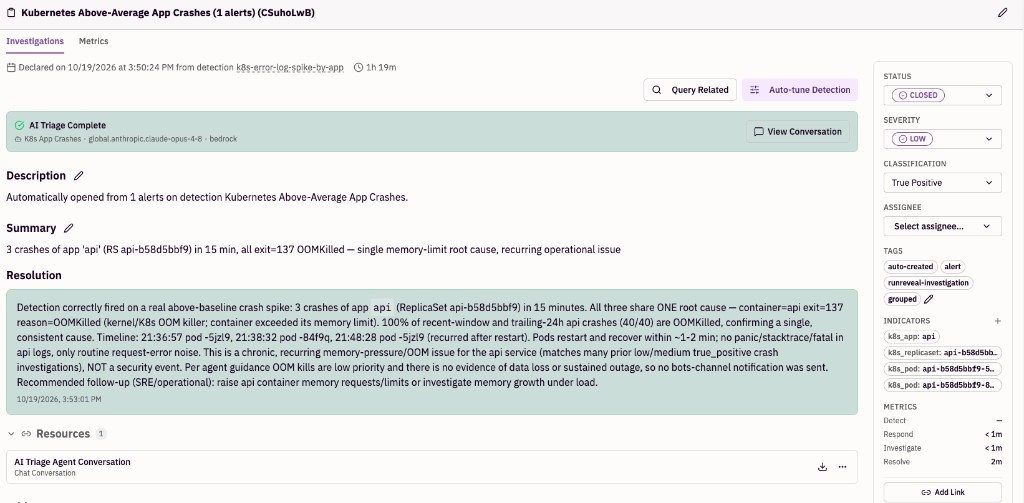
A triaged case looks like this. Here the agent classified a Kubernetes crash alert true_positive, judged it an operational issue rather than a security event, and closed it. The AI Triage Complete banner links to the agent's conversation. The summary, resolution, indicators, and timing metrics were all filled in by the agent.
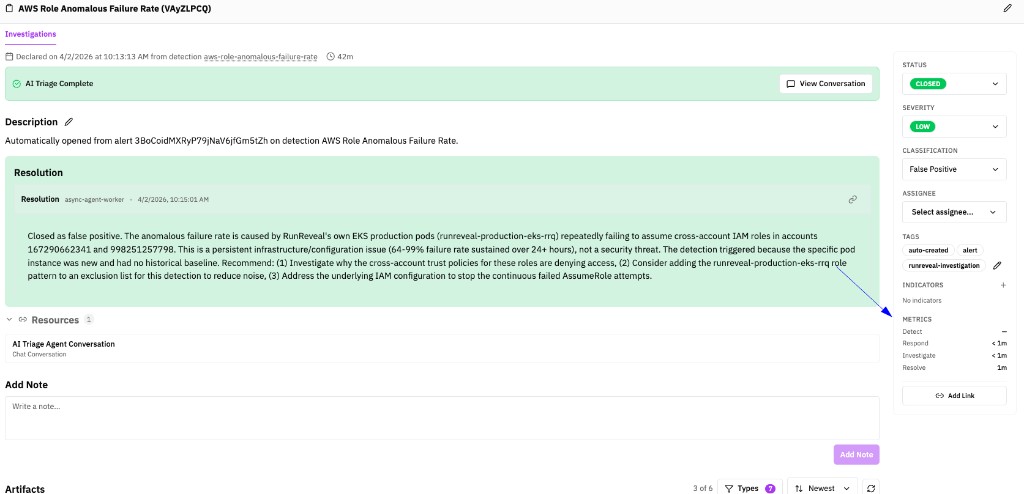
The same steps on a false positive
Change one fact: the source IP is a vulnerability scanner that was classified false_positive in an earlier investigation.
- IOC lookup returns that earlier false positive, and the log query shows the IP on its usual scan schedule.
- The agent still writes its note, then classifies
false_positive. - It adds no indicators and closes the investigation.
No one needs to act unless the note is wrong. If the same benign pattern keeps firing, tune the detection.
Turn on AI triage
Open the detection
Go to Detections, open the detection, and choose Edit Detection or Edit Subscribe.
Turn on investigations and AI Triage
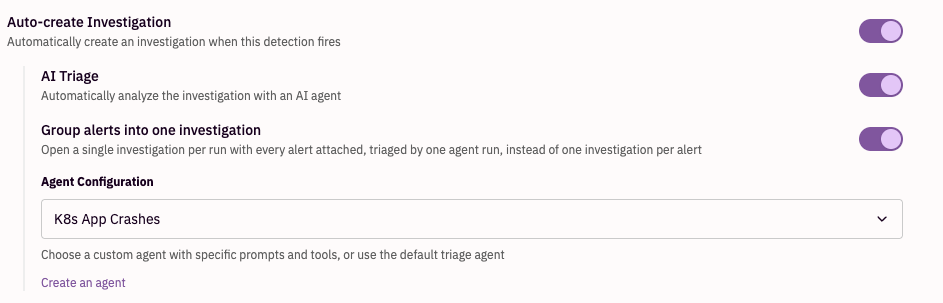
Turn on Auto-create Investigation, so alerts from this detection open investigations. Then turn on AI Triage beneath it.
Choose the agent
Under Agent Configuration, keep Default Triage Agent to run the 11 steps as written, or pick a custom agent. A custom agent's prompt is added after the 11 steps.
Group alerts, if needed
For high-volume detections, turn on Group alerts into one investigation. This requires the grouped_investigations flag.
Save
The next alert creates an investigation and starts triage automatically.
To give the agent detection-specific guidance, such as which logs to check, add it to the detection's notes. Those notes are added to the triage prompt for every alert from that detection.
Using past alerts in triage
The default agent is told not to search for or link other alerts, so past alerts on the same user or IP are not part of its analysis. History reaches it only through indicators on earlier investigations and through the logs it queries.
A custom agent can look at past alerts:
- In Agents, create an agent and turn on Disable the RunReveal system prompt. The agent then receives only the alert and investigation IDs plus your prompt, so your prompt has to cover classification and closing the case itself.
- Give it the Investigation Get, Add Investigation Artifact, Logs Query V3, List Tables, and Get Table Schema tools.
- In the prompt, tell it to query the
alertstable for the same actor or IP, for example:
- Select that agent under Agent Configuration on the detection.

Keeping the default prompt on and adding your own prompt does not lift the restriction on other alerts, because the 11 default steps still apply.
What the analyst still owns
| Responsibility | |
|---|---|
| Agent | Opens the case, gathers context, checks prior IOCs, writes the note, classifies, and closes or hands off |
| Analyst | Reviews investigating cases, takes response actions, tunes noisy detections, and records the resolution |
| Investigation | Keeps the timeline, indicators, classification, and timing metrics |
A good way to start is with one noisy detection: turn on AI Triage, read the notes the agent writes for a week, and adjust the detection notes or agent prompt from there.
Related Documentation
- Investigations - Full reference for investigation fields, artifacts, indicators, and automated triage
- Agents - Create custom agents for triage and scheduled work
- Quick Start: Detections, Signals, and Alerts - Build the detections that feed the AI SOC
- Detection as Code - Set
autoTriage,groupAlerts, and detection notes in code